


Every top model, with tools built in.
Search the web, run deep research, read files, create images and run code with GPT, Claude, Gemini, Grok and more.
Learn how to write professional emails that get results. Our guide covers subject lines, structure, tone, and etiquette to ensure your messages get read.
Ever hit 'send' on what you thought was a perfectly crafted email, only to be met with complete silence? Or worse, crickets? It’s a frustratingly common experience, and you're not just imagining it. The modern professional’s inbox is an absolute battlefield for attention, and most messages are losing the war before they’re even opened.
It really is a numbers game, and the odds are stacked against you. The number of global email users is projected to hit 4.89 billion by 2027, with a staggering 376 billion emails flying back and forth every single day. That flood of communication means your message is just one drop in an ocean, competing for a few precious seconds of your recipient's time.
So, how do you keep your professional messages from being ignored or deleted? It starts with understanding some fundamental business communication best practices. An email often fails not because of a simple typo, but because it lacks clarity, relevance, or just plain respect for the reader's time.
The real goal isn't just to send information—it's to earn a response. This requires a small but powerful mental shift. Stop thinking only about what you want to say and start focusing on what the recipient needs to hear. Every single element, from your subject line to your sign-off, has to work together to make your message compelling and incredibly easy to act on.
This is where so many of us stumble. We get caught up in our own goals and deadlines, forgetting that the person on the other end is juggling dozens of other priorities. Your email needs to cut through that noise, and it needs to do it instantly.
The core principle of a great professional email is empathy. It anticipates the recipient's questions, respects their time, and makes it incredibly simple for them to understand what you need from them.
To get you started on the right foot, here's a quick cheat sheet. Think of this as your first step toward crafting emails that actually get results. It contrasts some of the most common mistakes I see with professional alternatives you can start using today.
Getting these basics down is a game-changer. Of course, tools can help you build these habits faster. For instance, using a platform like Zemith can help you sidestep these common pitfalls. Its AI-powered Smart Notepad can instantly rephrase clunky sentences or turn messy notes into polished, professional paragraphs, making sure every email you send is primed for a reply. It's like having a writing coach who never needs a coffee break.
Your email subject line is your message's first—and often last—chance to make an impression. It’s a 60-character pitch that determines whether someone clicks open or hits delete without a second thought. Getting this right isn't about clickbait; it's about clarity and showing respect for the other person’s time.
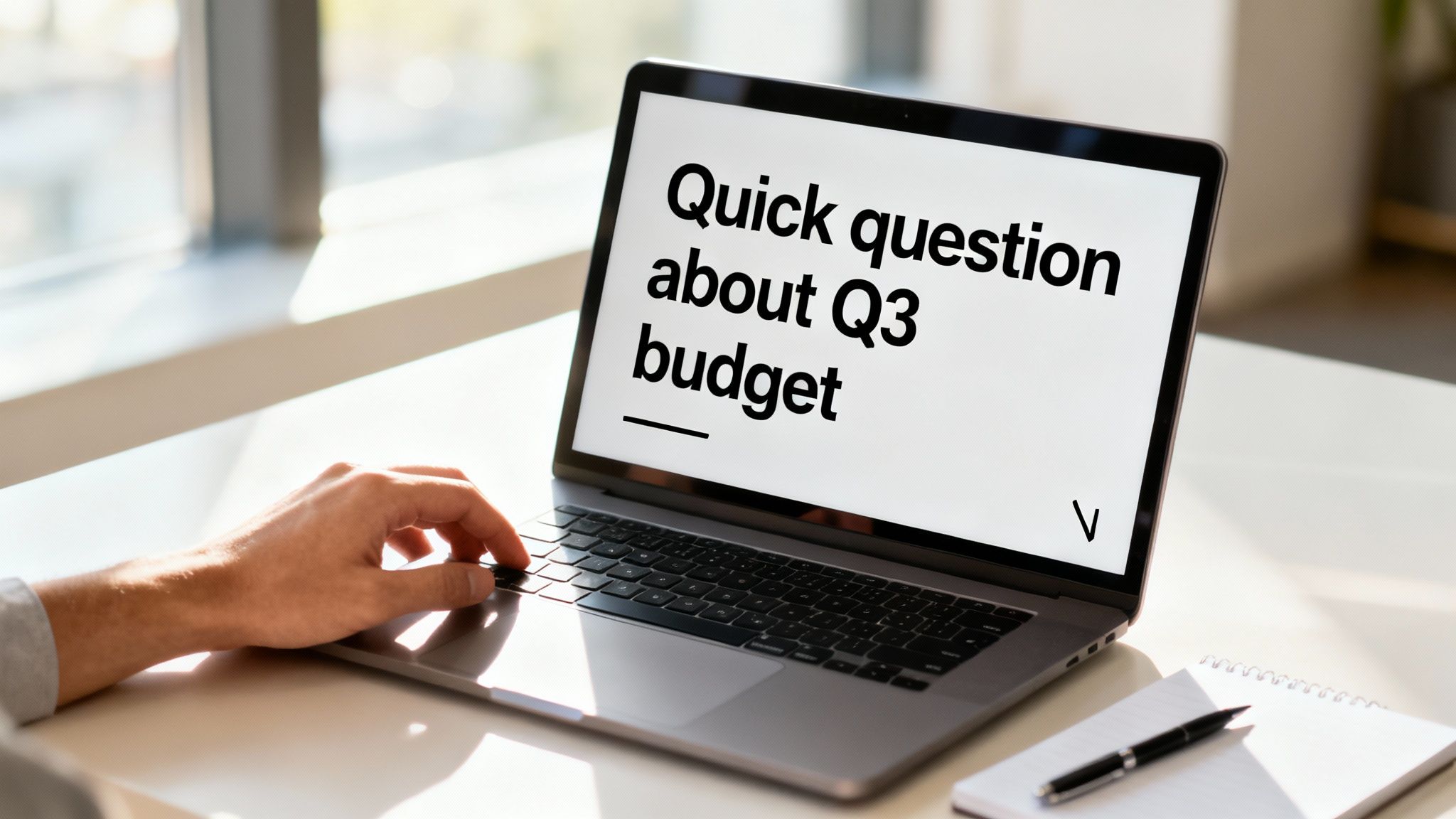
Think about it from their perspective. An inbox is a battlefield for attention. A vague subject like "Question" or "Following up" forces them to do the mental work of figuring out what you want.
Let's be honest, no one has the time or energy for that. A truly effective subject line instantly communicates the email's purpose and, when needed, its urgency.
A one-size-fits-all approach to subject lines just doesn't work. The right tone and phrasing depend entirely on the context. A quick project update requires a different touch than a cold email to a potential client.
Here are a few proven frameworks that work time and time again:
If you find yourself staring at a blank subject line field, the AI Smart Notepad in Zemith is a lifesaver. It can generate several professional options based on your email's content, helping you find that perfect hook without the headache.
A great subject line answers three silent questions in the recipient's mind: Who is this from? What is this about? And why should I care right now?
The data doesn't lie: shorter, personalized subject lines consistently win. With more than half of all emails being read on mobile devices, a concise subject line is no longer optional. Anything over 70 characters risks getting cut off, burying your key message.
Personalization is just as crucial. One study found that 65% of marketers rely on personalized subject lines because they know it drives engagement. You can learn more about this and other fascinating email marketing stats at Optinmonster.
And this doesn't have to be complicated. Personalization can be as simple as including their name, their company, or referencing a project you're both working on.
Once they’ve opened your email, the greeting sets the tone for everything that follows. The right choice here hinges on your relationship with the recipient and the overall context.
It's best to avoid overly casual greetings like "Hey" unless you have a solid, informal rapport with the person. When you're on the fence, "Hi" is almost always a safe and appropriate choice.
Getting the subject line and salutation right are two sides of the same coin. Both demonstrate clarity and respect, setting the stage for a productive conversation.
For a deeper dive into crafting text that grabs attention, check out our guide on how to write better headlines. You'll find that many of the same principles apply to writing irresistible subject lines.
You wrote a brilliant subject line and they clicked. Great. Now the real work begins. The body of your email is where you persuade, inform, and get things done, but you're up against a tough reality: people don't read emails. They scan them.
Your mission is to structure your message so the main point is impossible to miss, even for someone skimming on their phone while waiting for coffee.
This means you absolutely have to lead with the most important information. Don't bury your request or key takeaway under a pile of pleasantries. State your purpose right after the greeting to immediately grab their attention and set clear expectations.
Think of it like a news article. The headline and the first sentence tell you the whole story in a nutshell. Your email should work the same way. This approach shows you respect the reader’s time and dramatically increases the odds they'll actually understand what you need from them.
The military has a brilliant principle for this called "BLUF," which stands for Bottom Line Up Front. It’s a simple but incredibly powerful idea: put your conclusion or main request at the very beginning of the message. This guarantees the critical information gets across instantly.
Let's see how this transforms a typical, rambling email.
Before (Vague and Buried):
"Hi Alex, Hope you’re having a great week. I was just reviewing the latest project timelines and looking over the client feedback from last week's meeting. There are a few moving parts I want to make sure we align on before the end of the month."
After (Clear and Actionable):
"Hi Alex, I need your final feedback on the Q3 project proposal by EOD Thursday. I've attached the latest version with the team's notes. Let me know if you have any questions."
The second example is direct, crystal clear, and gives a specific deadline. There’s no room for misinterpretation. The recipient knows exactly what is needed and by when, all within the first sentence. This is a non-negotiable part of knowing how to write professional emails that actually work.
Nothing makes a reader's eyes glaze over faster than a giant, dense block of text. Those intimidating paragraphs are where good intentions and important requests go to die. The fix is simple: make your email scannable.
Break up your thoughts into short, punchy paragraphs—two or three sentences, max. Use bullet points or numbered lists to lay out steps, questions, or key takeaways. This creates visual breathing room and makes your content far easier to digest on any device, especially mobile.
Your email's structure should guide the reader's eye. Use white space, short paragraphs, and lists to create a clear path from your opening line to your call to action.
If you have a hard time being concise, an AI assistant can be a game-changer. For instance, the Smart Notepad in a tool like Zemith is built for this. You can drop in a long, rambling paragraph and ask it to whip it into concise bullet points or just rephrase it for clarity. It's a fantastic way to train yourself to write more effectively.
Getting the structure right isn't just about formatting; it's also about tone. You want to sound professional, but still approachable. Drop the overly formal language ("per your request") and the corporate jargon that makes you sound like a robot. Let's all make a pact to stop "circling back" when we really just mean "following up." Please? For me?
The goal is to write like a human—a focused and respectful one.
Here’s a quick comparison to drive the point home:
The "Just Right" example is polite, clear, and sounds natural. It communicates respect without being stuffy, which helps build trust and ensures your message is not only read but also received well. That’s how you strengthen professional relationships with every email you send.
You’ve laid out a brilliant message, but how you end your email is just as important as how you start it. A weak closing can leave your reader confused about what to do next, bringing your whole effort to a screeching halt. Your closing isn't just a farewell; it's the final push that gets your reader to act.
Ending an email effectively means going beyond a simple 'Best regards.' It's about pairing a professional sign-off with a crystal-clear call-to-action that removes any and all guesswork for the recipient.
Vague endings are where progress goes to die. Phrases like "Let me know your thoughts" or "Looking forward to hearing from you" are polite, sure, but they’re completely passive. They don’t actually tell the person what you need from them. A powerful call-to-action (CTA) needs to be direct, specific, and incredibly simple to follow.
Instead of leaving things open to interpretation, give them a clear next step.
Instead of this: "Let me know if you want to connect."
Try this: "Are you free for a 15-minute call next Tuesday or Wednesday afternoon?"
Instead of this: "Please review the attached."
Try this: "Could you please share your feedback on the 'Key Milestones' section of the attached proposal by EOD Friday?"
That small change makes all the difference. It turns your email from a passive update into an active tool for getting things done. The goal is to make it absurdly easy for the other person to respond and move the ball forward.
Your email's closing shouldn't be an afterthought—it should be a catalyst. A clear CTA tells the recipient exactly what you need, making it incredibly simple for them to give you a "yes" or a specific answer.
The sign-off you pick subtly reinforces the email's entire tone. There’s no single "best" option, but some are definitely better suited for certain situations. It's a key part of knowing how to write professional emails that land the right way.
Here’s a quick rundown of common closings:
What should you avoid? Overly casual closings like "Cheers" (unless you're sure it fits the culture) or just ending with your name, which can feel a little abrupt.
Think of your email signature as your digital business card. It works behind the scenes in every message to bolster your credibility. A messy, incomplete, or poorly designed signature can easily undermine an otherwise perfectly written email.
A strong signature should always contain these essentials:
The key is to keep the design clean and mobile-friendly. Steer clear of large images, a rainbow of colors, or inspirational quotes—they often look unprofessional and can break on different email clients.
For any organization, keeping employee signatures consistent is a real headache. This is where centralized management tools are a lifesaver. For example, Zemith's signature management platform lets a company create and deploy a standard, professional signature across the entire team. It’s an effortless way to ensure every single email reflects a unified and polished brand.
Finally, remember that a great closing is just one piece of a well-written whole. If you want to sharpen your writing from top to bottom, check out our guide on how to edit writing for maximum clarity and impact.
We’ve all had that heart-stopping moment of panic right after hitting 'send.' You reread the message and there it is—a glaring typo, the wrong recipient, or a tone that lands completely wrong. Learning to write a good professional email is as much about dodging these landmines as it is about mastering structure and style.
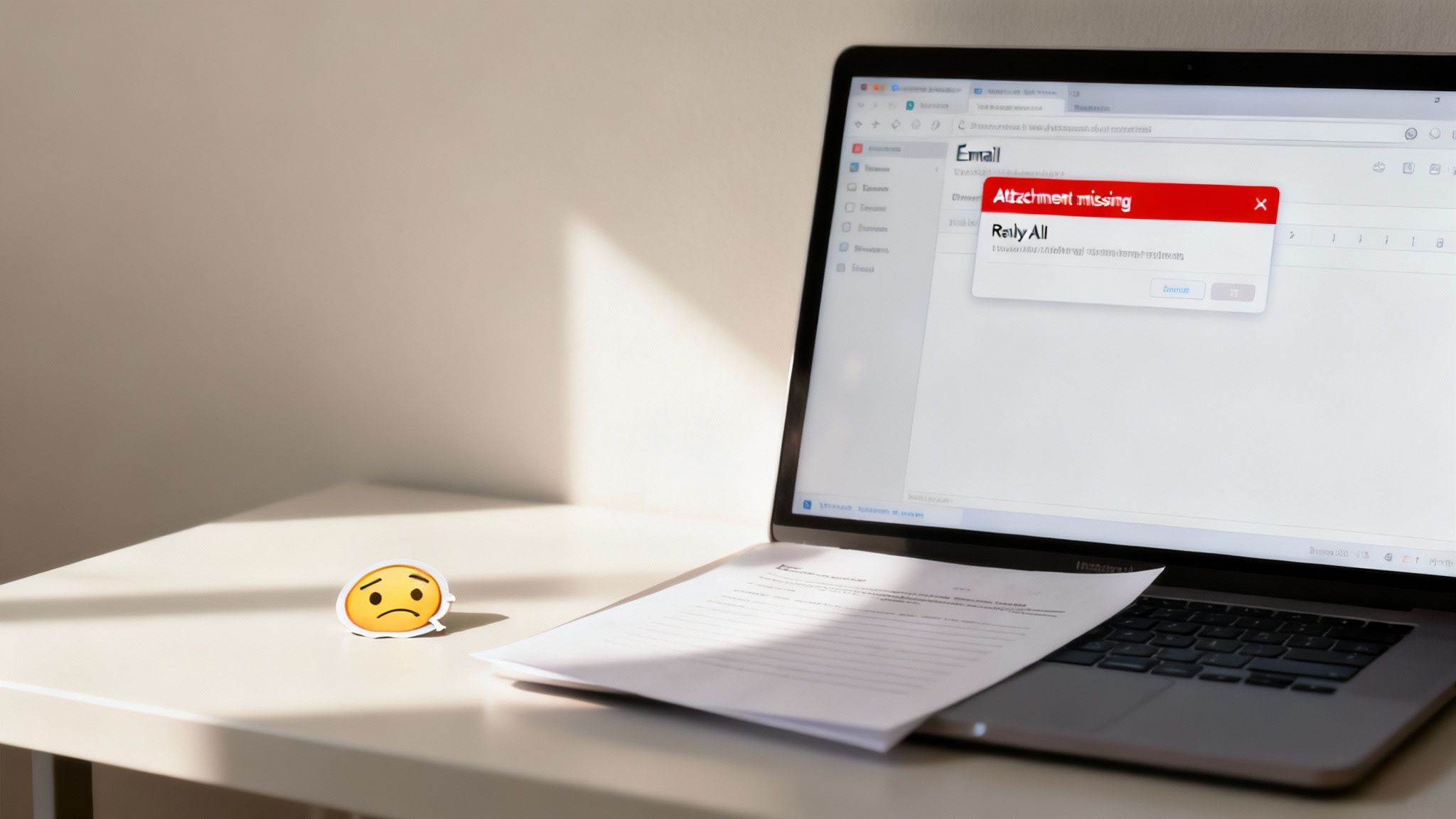
These blunders aren't just embarrassing; they can chip away at your credibility and create a mess of confusion. The good news? Most of these common pitfalls are incredibly easy to sidestep once you know what to look for.
Ah, the dreaded 'Reply All' button. It’s the digital equivalent of accidentally grabbing the office intercom to share a private joke. Before your finger even gets close to that button, just pause and ask: "Does every single person on this chain really need to see this?"
Nine times out of ten, the answer is a hard no. Unnecessary 'Reply All' emails just clog inboxes and splinter everyone's focus. Save it for when your information is genuinely critical for the entire group. When in doubt, just reply directly to the sender. Your colleagues will thank you for it.
Professionalism is often about what you don't do. Avoiding the 'Reply All' button is a small act of respect that preserves everyone's focus and sanity.
"Please find the document attached." It’s a classic line, usually followed by the classic mistake of forgetting to actually attach the document. This has to be one of the most common email fails, and it immediately makes you look frazzled and disorganized.
Here’s a simple fix: get in the habit of attaching your files before you even start writing the email. This one small change to your workflow can save you from sending that awkward follow-up that just screams, "Oops, I forgot!"
Believe it or not, your email address is part of your professional brand. If you're still firing off work-related messages from an address you made in high school—looking at you, [email protected]—it's time for an upgrade. An unprofessional email address can make people question your seriousness before they even get to your message.
Stick to a clean, simple variation of your name, like [email protected]. It’s a small detail, but it makes a huge difference in how you're perceived professionally.
Email is a minefield for misinterpretation. It lacks all the nuances of a real conversation—the tone of voice, the facial expressions, the body language. What you mean as direct and efficient can easily be read as blunt or even angry. Sarcasm and jokes? They often fall completely flat and create confusion.
Think about this: 88% of users check their email multiple times a day, with many checking it more than 20 times daily. As Optinmonster points out, your messages are under constant scrutiny. With that kind of visibility, keeping your tone clear and professional is non-negotiable.
Typos and grammar mistakes are the fastest way to tank your credibility. They signal a lack of attention to detail and distract from the point you're trying to make. Never, ever hit 'send' without giving your email one last, careful read-through.
Better yet, read it out loud. You'll be surprised how many awkward phrases and clumsy mistakes you catch that your eyes just skimmed over.
This is also where having an AI-powered safety net comes in handy. Platforms like Zemith can integrate grammar and spelling checks right into your workflow, helping you catch those errors before they go out the door. Its Smart Notepad can even suggest more professional phrasing, ensuring every email you send is polished, clear, and blunder-free.
Even when you know the rules, real-life email situations can be tricky. Knowing how to write professional emails often comes down to handling those gray areas with a bit of finesse. Let's walk through some of the most common questions I get asked, with practical answers to help you navigate them like a seasoned pro.
Ah, the follow-up. It's a delicate dance between persistence and pestering, isn't it? The secret is to be polite, patient, and, most importantly, add a little value. I've found that waiting at least 3-5 business days is a solid rule of thumb before you send a nudge.
When you're ready, just forward your original message and add a quick, friendly note at the top. Ditch the generic "Just checking in" and try something that actually helps them.
"Hi Sarah, just wanted to gently bump this in your inbox. When you have a moment, I'd love to get your thoughts on the Q4 budget projections. Thanks!"
See the difference? This approach is helpful, not demanding. It refreshes their memory on the context and points them to the specific thing you need, making it much easier for them to reply. You want to be a helpful reminder, not another chore on their list.
Cold emailing is all about making a great first impression, fast. You've got maybe three seconds to grab their attention, so your subject line and first sentence have to do some heavy lifting.
Your subject line needs to be about them, not you. Something like "Idea for improving user onboarding at [Their Company]" works far better than a generic "Introduction from [Your Name]."
Once they open it, get straight to the point:
This is the classic "it depends" scenario. The right answer really comes down to your company's culture and your relationship with the person you're emailing.
If you're making a first impression or work in a more formal industry like law or finance, just skip them. It's not worth the risk. But if you're emailing a colleague you have a friendly rapport with, and they use emojis themselves, a simple smiley face 😊 or thumbs up 👍 here and there is usually fine.
Just never, ever use them in a subject line, when delivering bad news, or in a formal proposal. My advice? When in doubt, leave them out. It’s always safer to be a little too formal than too casual.
This isn't just a nice-to-have anymore; it's a must. With well over half of all emails being opened on a phone, you have to write for the small screen.
If you want to see these principles in action, check out these excellent professional email example templates. Sometimes, seeing a real-world example is the best way to make these concepts click.
Feeling like there are too many rules to remember? Zemith can help. Its AI-powered Smart Notepad is like having a personal editor on call, helping you rephrase sentences for clarity, shorten paragraphs for mobile, and nail a professional tone every time. Stop guessing and start sending emails that get results.


Trusted by teams at


The top models, plus image, video and voice tools, in one plan.
Without Zemith
ChatGPT PlusUS$20.00Claude ProUS$20.00Google AI ProUS$19.99SuperGrokUS$30.00Perplexity ProUS$20.00 MidjourneyUS$10.00
 ElevenLabsUS$6.00Le Chat ProUS$14.99
 RunwayUS$15.00Kling StandardUS$8.80
 Gamma PlusUS$12.00
 Otter ProUS$16.99
 QuillBot PremiumUS$19.95
 Photoroom ProUS$12.99
 Quizlet PlusUS$7.99
Total if paying separatelyUS$234.70/mo
"I love the way multiple tools they integrated in one platform. Going in the right direction."
— simplyzubair
"The quality of data and sheer speed of responses is outstanding. I use this app every day."
— barefootmedicine
"The credit system is fair, models are perfect, and the discord is very responsive. Quite awesome."
— MarianZ
"Just works. Simple to use and great for working with documents. Money well spent."
— yerch82
"The organization of features is better than all the other sites — even better than ChatGPT."
— sumore
"It lives up to the all-in-one claim. All the necessary functions with a well-designed, easy UI."
— AlphaLeaf
"The team clearly puts their heart and soul into this platform. Really solid extra functionality."
— SlothMachine
"Updates made almost daily, feedback is incredibly fast. Just look at the changelogs — consistency."
— reu0691
Hand off the research, writing, design and follow-ups. Zemith picks the tools it needs and brings back finished work.
Search the web, run deep research, read files, create images and run code with GPT, Claude, Gemini, Grok and more.
Zemith keeps working in the cloud and pings you when it's done.
Notion, Linear, Canva, Airtable and more. It asks before it creates or changes anything.
Docs, slides, sheets and PDFs, ready to send.
Chain models and tools on a visual canvas, from one prompt to a finished promo video.
Briefings, reports and reminders run on a schedule and are ready when you need them.
Real-time voice that can see your camera or screen.
The best image and video models, in one studio.
Turn PDFs, links and YouTube videos into podcasts, quizzes, flashcards and mind maps.


 Podcast
 Quiz
Quiz Flashcards
 Mind map
 Infographic