How to Edit Images with AI a Practical Workflow
Learn how to edit images with AI using a practical, real-world workflow. Covers models, prompts, inpainting, and pro tips inside Zemith.
You've got a clean product photo, a deadline, and one simple request: remove the clutter, change the background, and keep the product looking exactly like the original. The first AI render looks impressive at thumbnail size. Zoom in, though, and the logo has gone soft, the watch crown is melting into the case, and the shadow is pointing in a completely different direction. Suddenly, the “five-minute edit” needs a rescue mission.
That's the answer to how to edit images with AI. The hard part isn't writing a dramatic prompt. It's choosing the right model, limiting the edit, checking what changed, and cleaning up what the generator got wrong. AI can save a huge amount of repetitive work, but it still needs an editor's judgment.
Why Your AI Image Edits Keep Missing the Mark
The product hero shot above wasn't an unusual failure. AI image editors are often excellent at broad visual changes, such as removing a distracting object, extending a background, or creating several rough concepts quickly. They're less dependable when the request involves tiny details, exact branding, identity preservation, or physical consistency.
The problem usually starts with a one-shot workflow. Someone uploads an image, types “make this look premium,” accepts the first result, and only notices the damage after it's already in a presentation or campaign folder. A vague prompt gives the model too much freedom. The wrong model may prioritize atmosphere over fidelity. Without a cleanup pass, small defects survive because the image looks convincing from a distance.
The three silent failures
Ambiguous prompts leave the editor guessing. “Make the product better” doesn't define what should change, what must remain untouched, or how the new version should relate to the existing lighting.
Mismatched model strengths create predictable trouble. A photorealistic generation model may produce beautiful surfaces but struggle with small text or a familiar logo. An instruction-focused editor may follow the requested change more closely while producing a flatter or less polished result.
No cleanup pass turns a promising render into a risky deliverable. The AI may add a second earring, alter a hand, blur a label, or introduce a hard halo around a cutout. Those details matter, particularly in ecommerce and branded work.
The commercial importance of this workflow is growing. Future Market Insights estimates the global AI Image Editor Market at USD 88.7 billion in 2025, projected to reach USD 229.6 billion by 2035 at a 10.0% CAGR (market figures summarized by PhotoRoom). AI editing has moved well beyond an experimental feature, but mainstream adoption doesn't make first-pass verification optional.
A reliable process treats AI editing as a pipeline: define the change, select the model, constrain the region, compare variants, inspect the pixels, and repair the leftovers.
Choosing the Right AI Model for the Job
There isn't one universally “best” image model. The useful question is narrower: which model family is most forgiving for this particular edit? A fashion portrait, a product label, and a low-resolution archival photo need different kinds of help.
Photoreal diffusion models nail atmosphere. Ask for a sunlit studio, a moody restaurant, or a realistic outdoor setting, and they can create a strong result quickly. They often fall apart on tiny props, packaging text, and exact brand geometry, so they're a poor choice when the original object must remain technically faithful.
Instruction-tuned editors are more practical for “change this mug, keep the desk” requests. Their trade-off is aesthetic subtlety. Skin can look overly smooth, texture can disappear, and the result may feel more corrected than photographed.
Open-source checkpoints offer control, but flexibility comes with maintenance. One checkpoint may handle clothing beautifully while another creates strange hands or inconsistent edges. Enhancement models are the least glamorous option, yet they're often the right answer when the image only needs denoising or enlargement rather than invention.
For visual references outside commercial product work, a contemporary fine art collecting guide can also help you think about composition, material, and visual intent before you start editing. That distinction matters. A model can imitate a surface without understanding why the original composition works.
Zemith lets you test multiple image models inside the same workspace, so you can switch approaches without re-uploading the source each time. Its AI model comparison guide is useful when you're deciding whether the job calls for realism, instruction following, or enhancement rather than committing to a favorite by habit.
Your First Edit Inside the Zemith Workspace
Start with the highest-resolution source you have, not a screenshot pulled from a chat or a compressed social export. Drag the image into Zemith, choose the image editing mode, and select the underlying model deliberately. The default may be convenient, but convenience isn't a creative strategy.
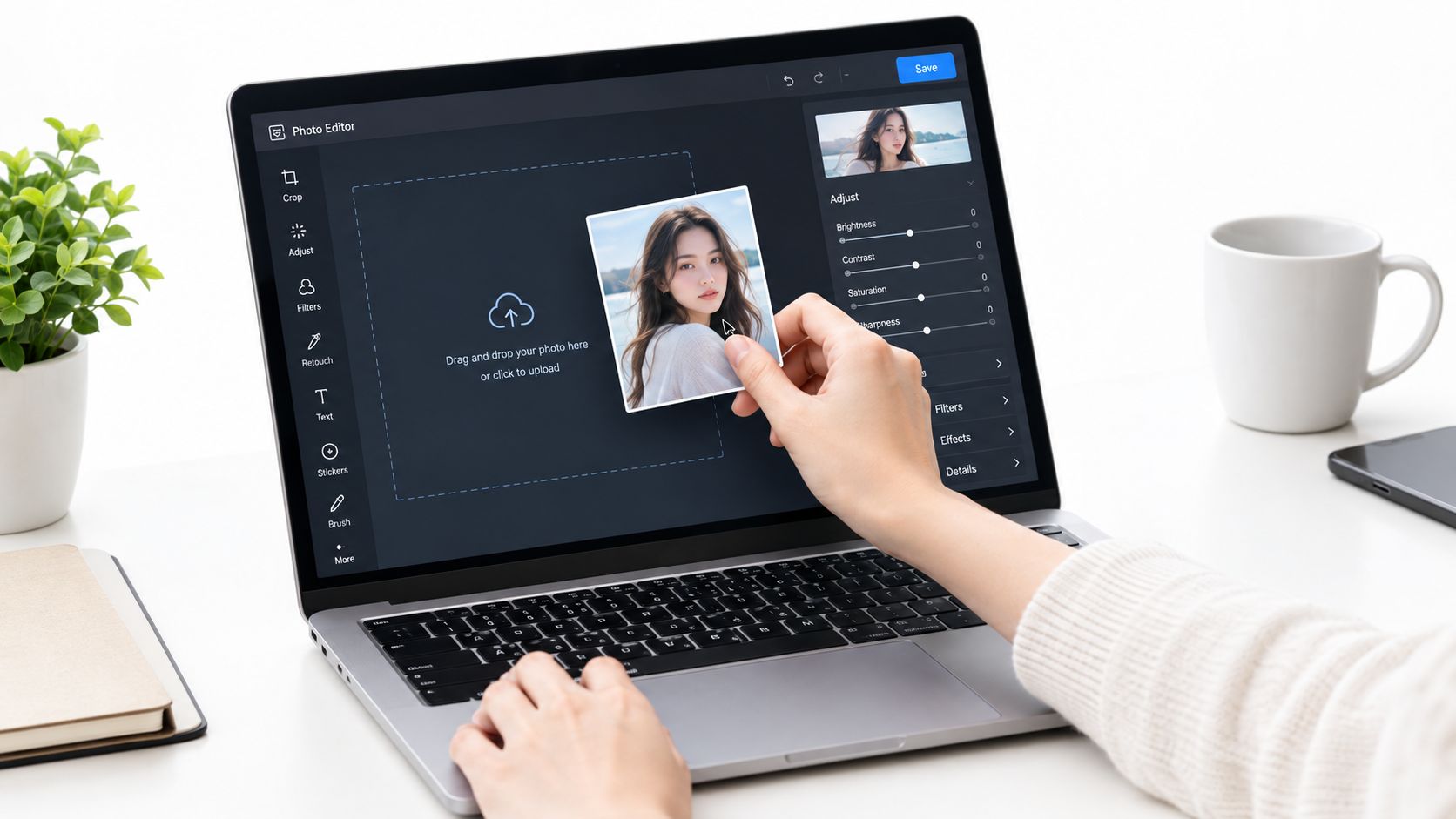
Treat the prompt box as a short creative brief. Describe the subject, the exact change, the environment, and the constraint. “Make it nicer” is a mood, not an instruction. “Replace the pale blue wall with a warm neutral studio background, preserve the subject's position and the original side lighting” gives the editor something it can act on.
The seed and strength controls are the two settings that separate a repeatable edit from a lucky render. Pinning a seed helps you compare prompt changes without changing everything else. Adjusting strength controls how aggressively the model departs from the source. Lower strength generally suits preservation, while a stronger setting is useful when the original composition needs a more substantial transformation.
Use the canvas mask when only one region should change. Paint tightly around the object rather than giving the model the whole frame. If you're transferring a visual mood, the style reference slot can provide the look and feel while the source image supplies the composition.
A practical first session might involve a desk photograph with a distracting mug. Upload the image, select a local editing mode, mask the mug, choose a model that follows instructions well, and ask for a matte black ceramic replacement with matching scale, contact shadow, and left-side window light. Save the source and each meaningful variant. Zemith's AI image generator from an image workflow is relevant when you want to use an existing image as the structural starting point instead of generating from an empty prompt.
The next four moves use the same setup, but each needs a different kind of constraint.
Four Editing Moves That Actually Hold Up
AI editing works better when you name the move before you write the prompt. Background removal, object replacement, inpainting, and style transfer may all look like “editing,” but they place different demands on the model.
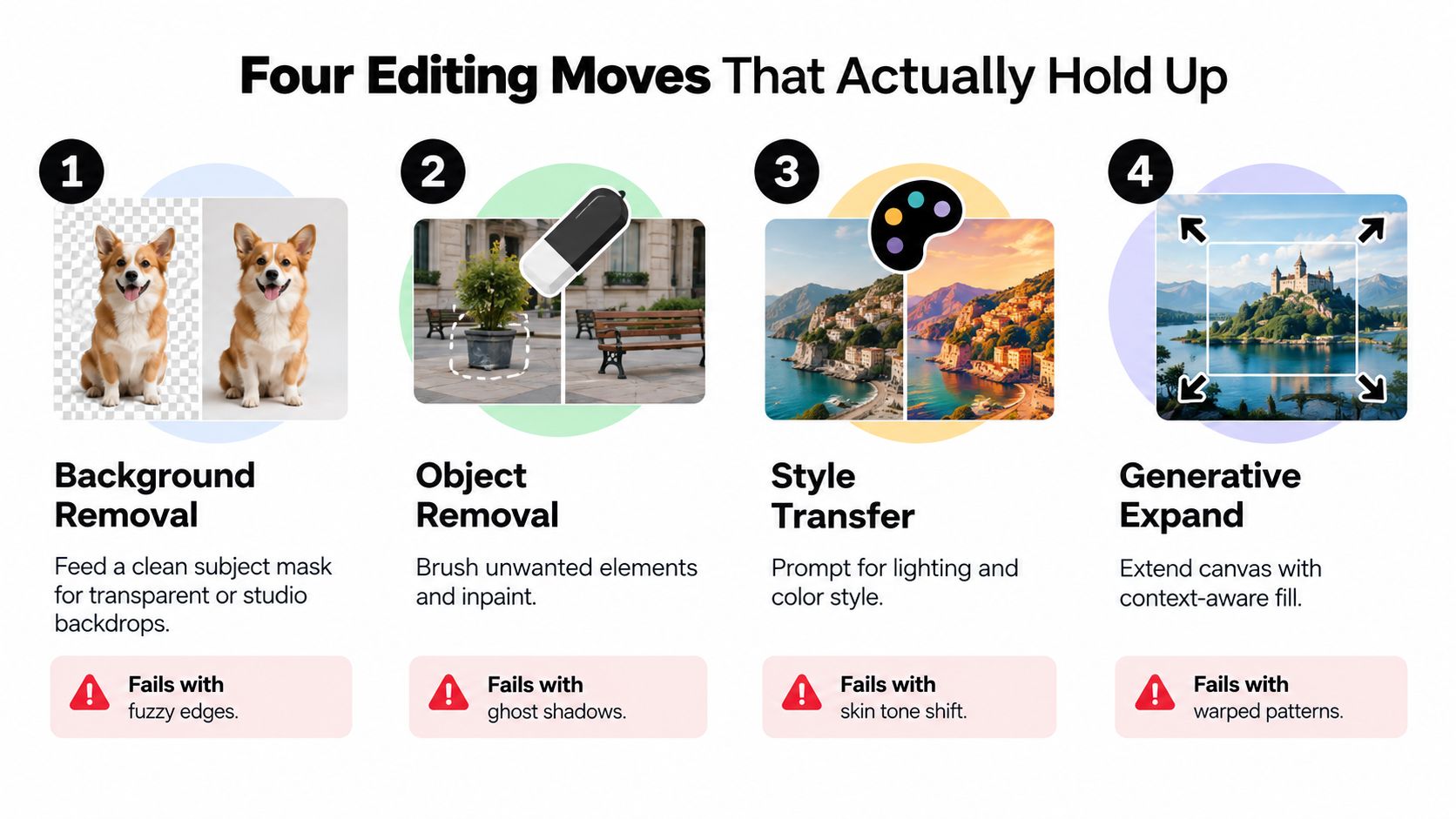
Background removal
Start with a clean subject mask and define the intended destination. Instead of writing only “remove background,” describe the edge condition and the replacement: “isolate the glass bottle, preserve the transparent rim and fine label edges, place it on a neutral studio backdrop.”
The common artifact is a fuzzy halo, especially around hair, glass, fur, or reflective materials. Zemith's region selection helps you revisit just the edge, while the seed lets you test a correction without losing a version that already has a good silhouette.
Object replacement
Object replacement needs more than a noun. Anchor the new object with scale, perspective, lighting, and contact shadow. “Replace the orange mug on the wood desk with a matte black ceramic mug, matching the camera angle and soft window light from the left” gives the model a physical role to fill.
The usual failure is a floating object. The mug may look attractive but fail to touch the desk, or its shadow may disagree with every other shadow in the frame. Edit the object region separately and inspect the contact point at full size.
Inpainting
For inpainting, brush the smallest region that solves the problem. State what should disappear, then repeat what must stay unchanged outside the mask: “remove the cable from the floor, preserve the floorboards, baseboard, and existing light.”
Ghost shadows and repeated textures are common when the mask is too broad. Repainting the entire frame makes those problems harder to diagnose. Zemith's region-select controls let you handle one defect at a time, and its seed controls make targeted retries easier.
Style transfer
Style transfer should lock the composition and alter only the visual language. Mention palette, lighting, contrast, and texture, then add a guardrail: “preserve the subject, pose, framing, and facial features; apply a muted editorial film palette with soft grain.”
If you leave the subject unconstrained, the model may change clothing, skin tone, or facial structure while chasing the requested style. For extending a frame or adapting a crop, the AI image extender guide covers a related use case where the model must continue the scene without rewriting the original center.
Prompt Crafting That Survives a Second Pass
The first prompt should make the second prompt easier. That means writing a constrained brief rather than tossing adjectives into the box and hoping the model develops taste overnight.
Consider the difference between these two requests:
Weak: “Make the product look better.”
Stronger: “Replace the orange mug on the wood desk with a matte black ceramic mug, soft window light from the left, no reflections on the screen behind it.”
The second version identifies the subject, the intended change, the setting, the light direction, and a negative constraint. It gives the model a clear job and a clear boundary.
A useful prompt order
Lead with what must survive. Then describe the change. Finish with guardrails.
- Keep: Preserve the product shape, logo placement, camera angle, desk texture, and original lighting direction.
- Change: Replace the orange mug with a matte black ceramic mug.
- Constrain: Match the original scale, add a natural contact shadow, and leave the screen and keyboard untouched.
This order matters because image editors can treat every word as permission to reinterpret the frame. If you mention “cinematic,” “luxurious,” “dramatic,” and “high-end” before saying what must remain fixed, the model may prioritize style over continuity.
Mask discipline is just as important. Describe the masked region, but explicitly protect adjacent areas. For a face correction, say that the skin texture, hairline, eyes, jewelry, and background outside the mask must remain unchanged. Otherwise, the model may “improve” features you never asked it to touch. AI has a generous definition of helpfulness.
Zemith's prompt history, seed pinning, and side-by-side comparison support this iterative approach. Save several variants for each meaningful move, then compare them against the original reference. The winner isn't always the most dramatic render. It's the version that solves the requested problem while preserving the details that made the source usable.
The AI image prompt examples collection can help you turn broad creative intent into concrete instructions. Use examples as starting structures, not sacred formulas. Your product, lighting, and tolerance for change still determine the final wording.
Verifying, Cleaning Up, and Exporting the Final Image
The first AI render is a draft, even when it looks finished. Existing AI editors can fully handle only image manipulation detection 2026, according to a WACV 2026 study of practical tasks (study PDF). The rest usually needs human review or a traditional pass, especially for identity, spatial consistency, and small local repairs.
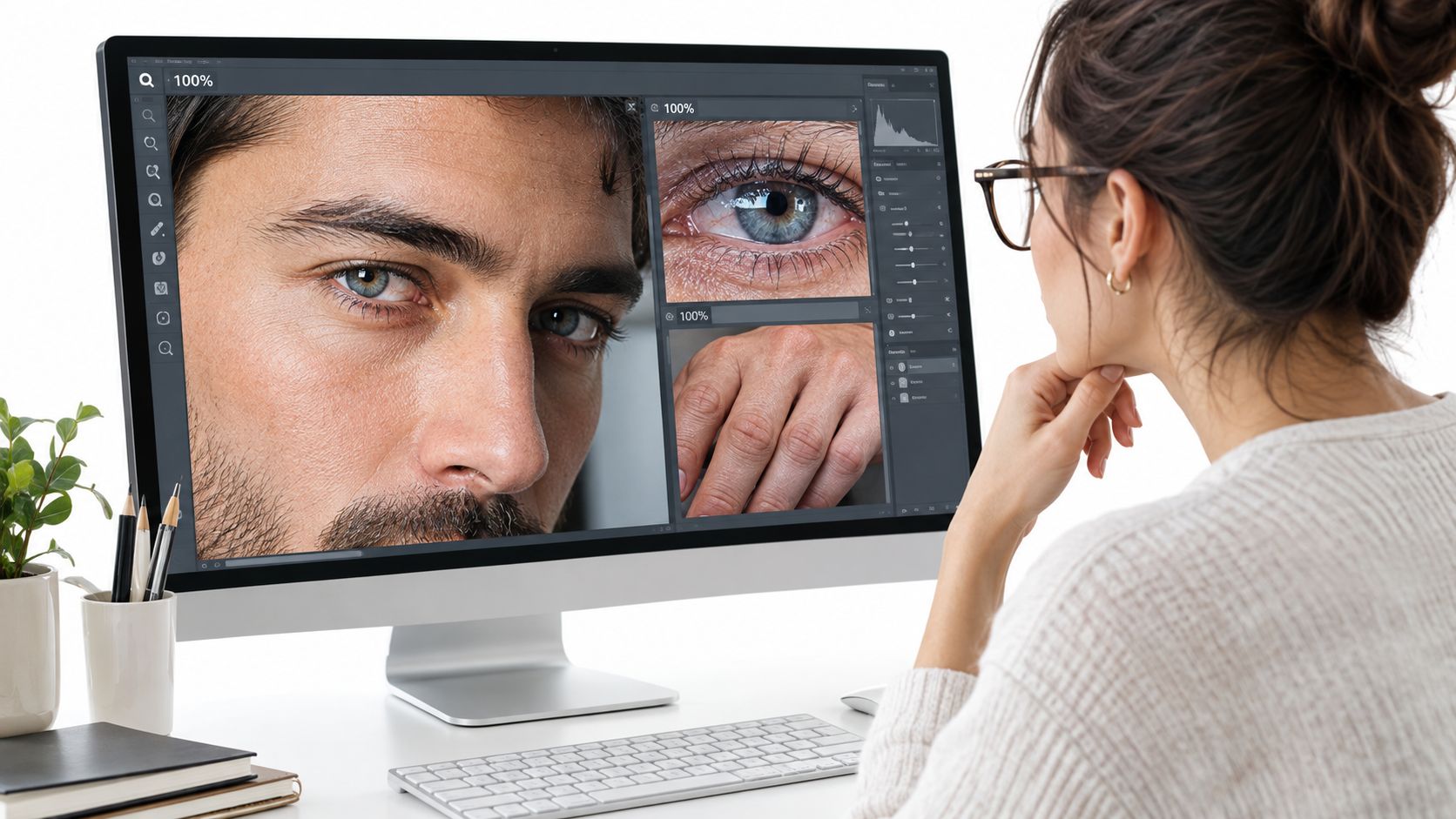
Start at 100 percent and inspect the file in a fixed order. Check for melted text, extra fingers, mismatched eyes, repeated earrings, odd reflections, and background bleed around the mask. Then compare color continuity between the edited and untouched areas. A slight white-balance shift can expose a composite faster than any obvious glitch.
Practical rule: Judge the image at delivery size and at 100 percent. A defect that disappears in a feed preview can still fail a product page, print proof, or client review.
For commercial work, check provenance and run an origin or reverse-image review where appropriate. Transparency expectations are also becoming more formal. The EU AI Act's Article 50(2) requires generative AI outputs to be marked in a machine-readable format and detectable as artificially generated or manipulated, as summarized by the European Parliament briefing.
Use Zemith's spot-fix tools for residual marks, sharpen the subject rather than the whole frame, and denoise skin gently so generated texture does not turn plastic. For the most common cleanup job, Zemith's guide on how to remove an image background walks through edge-safe masking step by step. Export PNG when transparency matters, high-quality JPEG at 85 to 92 quality for web, and TIFF for print. Keep the prompt and model details in a sidecar file so a client can see how the image moved from source to final.
A Field-Tested AI Editing Checklist
Use this before an AI-edited image leaves your workspace:
- Source master: Confirm you're working from the highest-resolution original and keep an untouched backup.
- Model match: Choose the model that suits the edit, not the one you last used.
- Prompt constraints: Name the subject, intended change, must-keep details, and unwanted changes.
- Small mask: Select only the region required to solve the problem.
- Variant review: Render multiple options, then compare each against the original.
- Pixel check: Inspect hands, faces, text, edges, repeated patterns, and lighting at 100 percent.
- Cleanup: Repair local defects before export.
- Delivery files: Save a full-resolution master and a compressed copy in the correct format and color profile.
Don't chase watermark removal, edit real people's identities without consent, or delete the original backup. Visible watermarking, identity preservation, and multi-turn conversational editing will keep shaping the workflow, but they won't replace careful review.
Zemith brings image-to-image editing, background and object changes, region-based fixes, model selection, and prompt iteration into one workspace. Try your next edit in Zemith, compare a few controlled variants, and keep the version that preserves the source instead of merely looking impressive at a glance.
Explore Zemith Features
Every top AI. One subscription.
ChatGPT, Claude, Gemini, DeepSeek, Grok & 25+ more


Always on, real-time AI.
Voice + screen share · instant answers
What's the best way to learn a new language?
Immersion and spaced repetition work best. Try consuming media in your target language daily.
Voice + screen share · AI answers in real time
Image Generation
Flux, Nano Banana, Ideogram, Recraft + more

Write at the speed of thought.
AI autocomplete, rewrite & expand on command
Any document. Any format.
PDF, URL, or YouTube → chat, quiz, podcast & more
Video Creation
Veo, Kling, Grok Imagine and more

Text to Speech
Natural AI voices, 30+ languages
Code Generation
Write, debug & explain code
Chat with Documents
Upload PDFs, analyze content
Your AI, in your pocket.
Full access on iOS & Android · synced everywhere
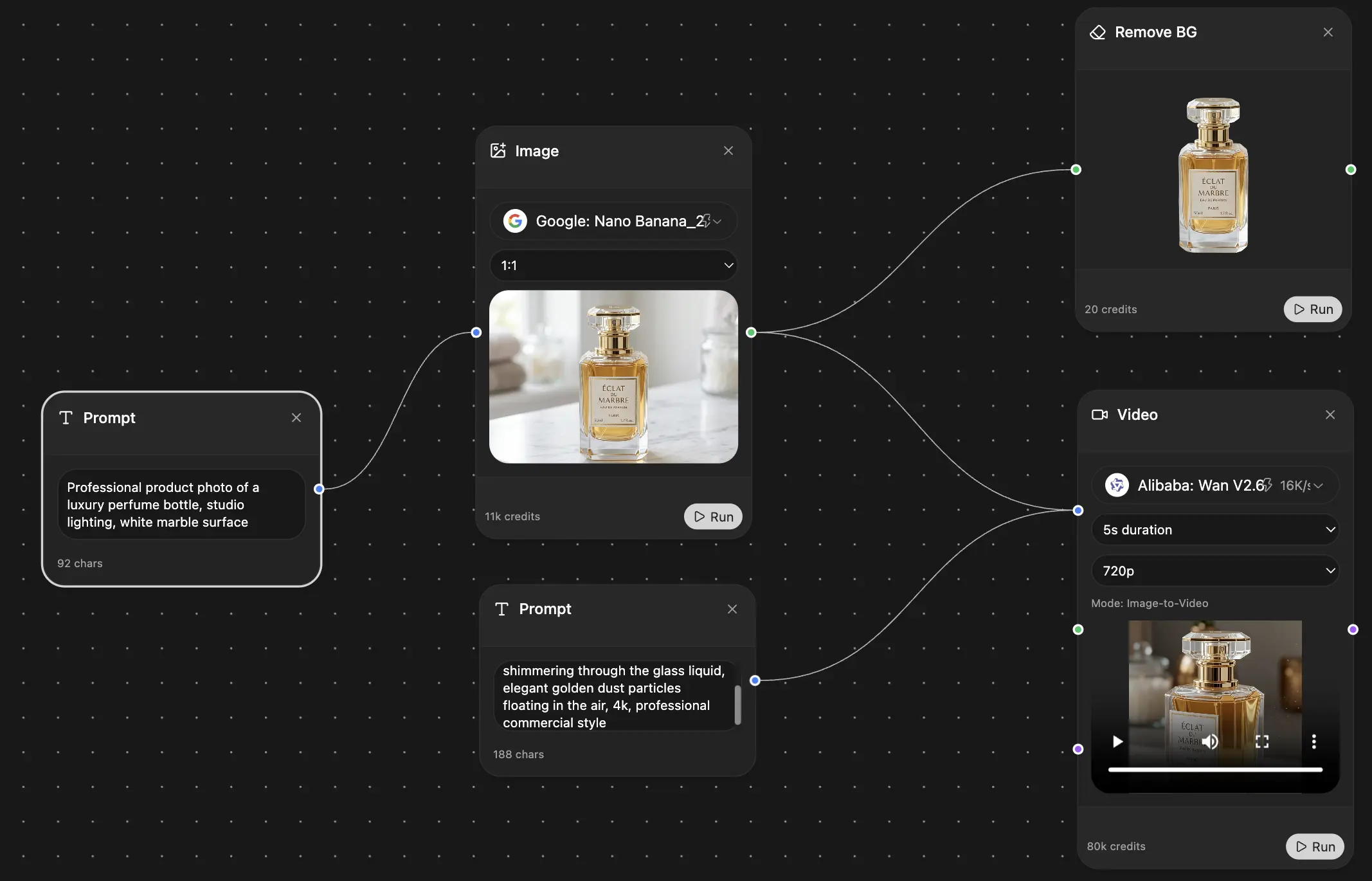
Your infinite AI canvas.
Chat, image, video & motion tools — side by side
Save hours of work and research
Transparent, High-Value Pricing
Trusted by teams at


Free
No credit card required
- 100 credits daily
- 3 AI models to try
- Basic AI chat
Plus
- 1,000,000 credits/month
- 25+ AI models — GPT, Claude, Gemini, Grok & more
- Agent Mode with web search, computer tools and more
- Creative Studio: image generation and video generation
- Project Library: chat with document, website and youtube, podcast generation, flashcards, reports and more
- Workflow Studio and FocusOS
Professional
- Everything in Plus, and:
- 2,100,000 credits/month
- Pro-exclusive models (Claude Opus, Grok 4, Sonar Pro)
- Motion Tools & Max Mode
- First access to latest features
- Access to additional offers
What Our Users Say
Great Tool after 2 months usage
"I love the way multiple tools they integrated in one platform. Going in the right direction."
— simplyzubair
Best in Kind!
"The quality of data and sheer speed of responses is outstanding. I use this app every day."
— barefootmedicine
Simply awesome
"The credit system is fair, models are perfect, and the discord is very responsive. Quite awesome."
— MarianZ
Great for Document Analysis
"Just works. Simple to use and great for working with documents. Money well spent."
— yerch82
Great AI site with accessible LLMs
"The organization of features is better than all the other sites — even better than ChatGPT."
— sumore
Excellent Tool
"It lives up to the all-in-one claim. All the necessary functions with a well-designed, easy UI."
— AlphaLeaf
Well-rounded platform with solid LLMs
"The team clearly puts their heart and soul into this platform. Really solid extra functionality."
— SlothMachine
Best AI tool I've ever used
"Updates made almost daily, feedback is incredibly fast. Just look at the changelogs — consistency."
— reu0691