


Every top model, with tools built in.
Search the web, run deep research, read files, create images and run code with GPT, Claude, Gemini, Grok and more.
Learn how to create a cartoon picture with AI, photo converters, or digital tools. Our guide makes it easy to turn your ideas into awesome cartoons today.
So, you want to create a cartoon picture? The easiest way in is to use an AI image generator to spin text into art or a photo-to-cartoon app to convert your pictures in a snap. Both routes get you impressive results in seconds, no drawing skills required. Let's dive in, shall we?
Ever get a brilliant idea for a cartoon but stop because you thought, "I can't even draw a straight line"? Good news: you don't have to. Making cartoons today is easier than ordering a pizza, mostly because of the massive shift to digital tools.
Computer-generated animation now dominates about 85% of the global animation industry, making digital the standard way to create. And this trend is getting supercharged by AI, a market expected to rocket from $1.3 billion in 2023 to a whopping $28.1 billion by 2033. All this growth puts some seriously powerful tools right at your fingertips.
So, where do you begin? There are a few different ways to tackle this, and the best one really depends on what you're trying to do. Are you after a quick and funny new profile picture? A completely original character for a project? Or just looking for a new way to get creative without pulling your hair out?
Think of it like a roadmap. This decision tree can help you figure out your best starting point based on whether you want something fast, fun, or fully custom.
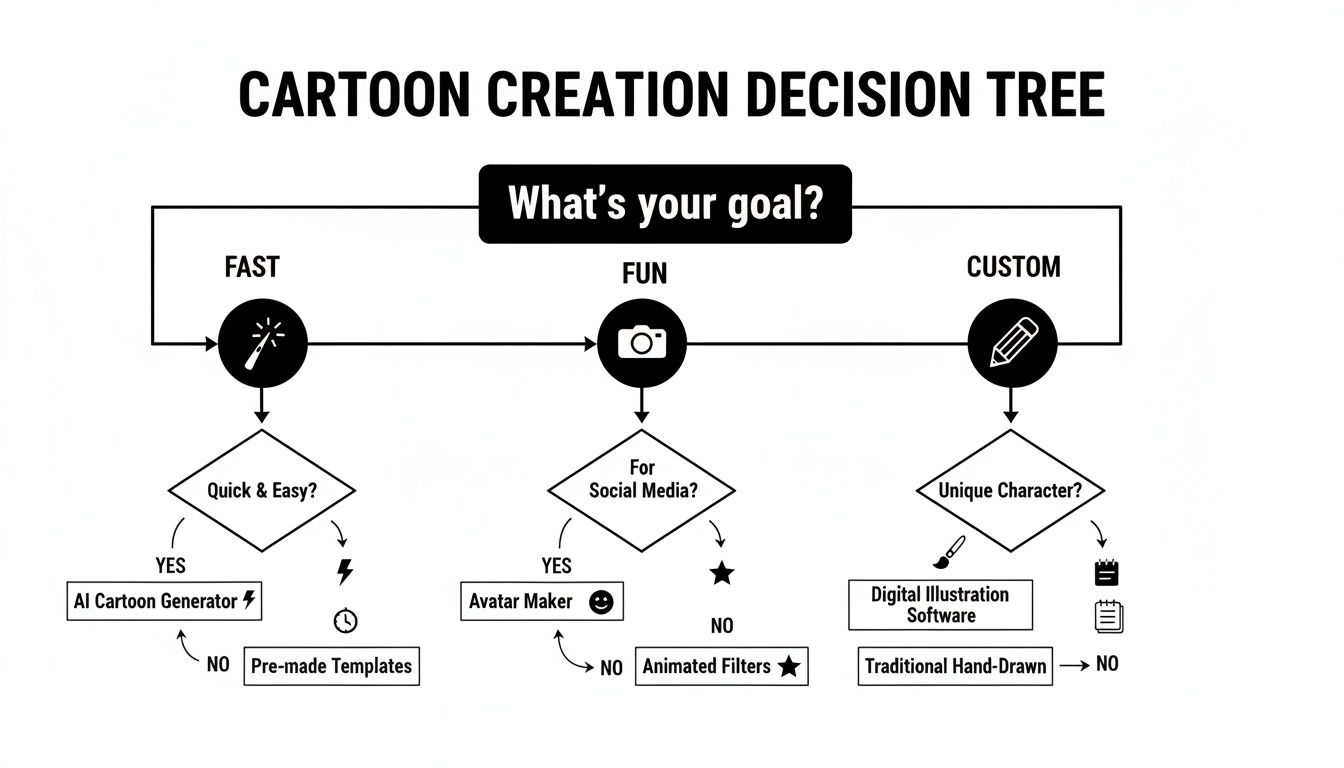
The main takeaway here is pretty simple: there’s no single "right" way. It’s all about matching the method to your goal. So, how can I create a cartoon picture from a photo for free? Or, how can I generate a cartoon character from scratch? Let's break it down.
This table should give you a good sense of where to jump in. Each approach has its own strengths, whether you're looking for speed, personalization, or total artistic freedom.
Throughout this guide, we’ll walk through each of these paths with simple, practical steps. I'll show you how to:
Platforms like Zemith are great because they pull all of these possibilities into one spot, giving you access to powerful models like Stable Diffusion 3.5. This means you can go from a simple idea to a finished cartoon with just a few clicks or a short sentence. Consider this your personal roadmap to making awesome cartoons in minutes.
Ever wish you could bring an idea to life just by describing it? That's pretty much what text-to-image AI lets you do. Think of it as your own personal animation studio, ready 24/7 to turn your wildest thoughts into cartoon art—no drawing skills required. And no, it won't talk back or ask for a coffee break.
It all comes down to how well you can communicate with the AI. You're not just typing in simple commands; you're crafting detailed creative briefs called prompts. There’s a world of difference between "draw a cat" and "a fluffy ginger cat with big green eyes, wearing a tiny blue bowtie, in the style of a classic 90s anime."
The more detail you feed the AI, the closer it gets to that picture you have in your head.
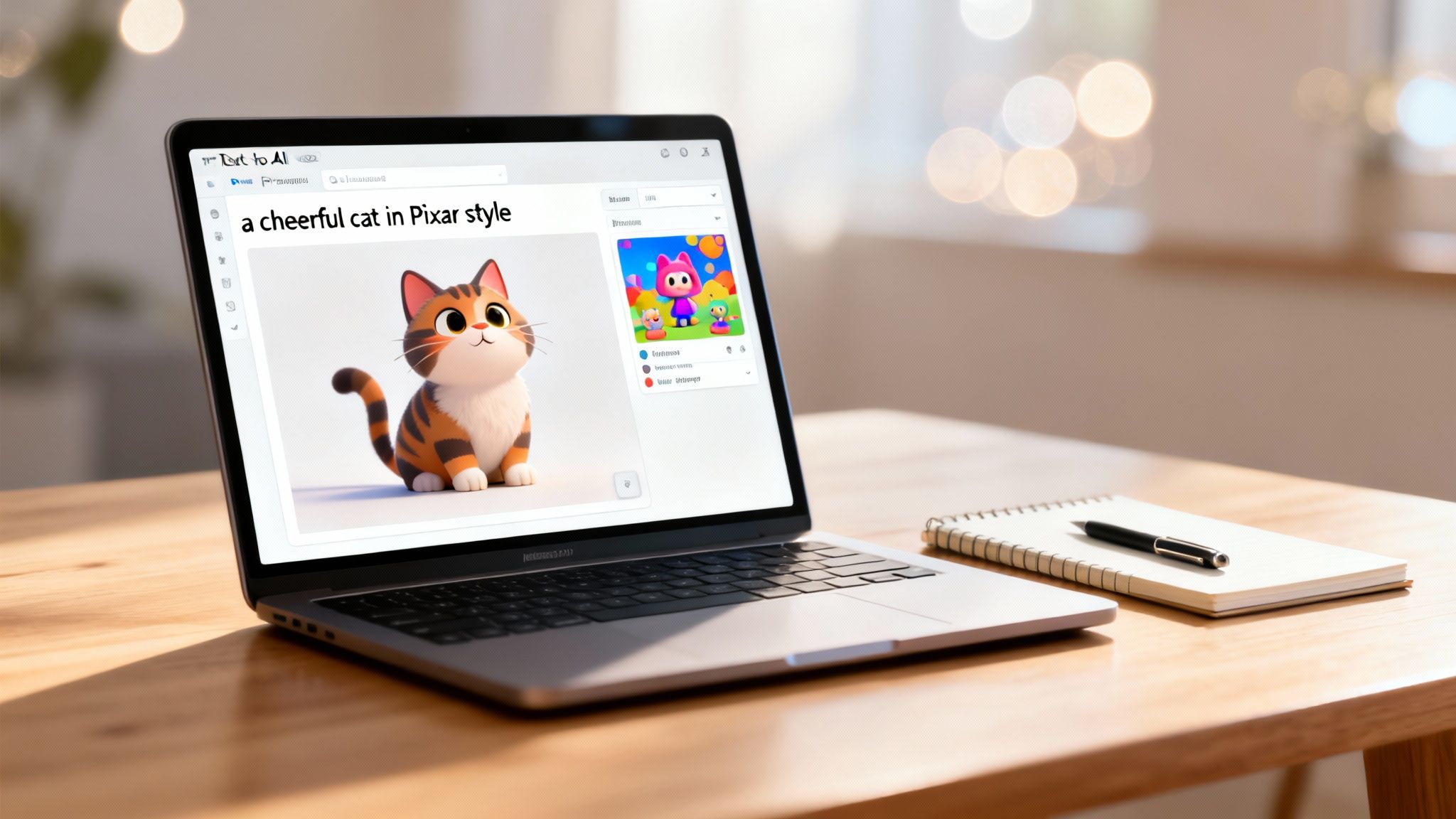
So, how do you get good at telling a machine what to draw? It’s a skill people are now calling prompt engineering, but don't let the fancy name intimidate you. It’s really just about breaking your idea down into its core pieces.
A solid cartoon prompt usually has a few key ingredients:
Stitch it all together, and you have a powerhouse prompt: A cheerful robot barista serving a latte with foam art, in a cozy, sunlit cafe, Pixar movie style, dramatic lighting from the side.
The secret weapon in any prompter's toolkit is the negative prompt. This is where you tell the AI what you don't want to see. If you keep getting images with mangled, six-fingered hands (a classic AI weirdness), you can add things like
six fingers, extra limbs, blurryto your negative prompt to guide it toward a better result. It's like telling your GPS "anywhere but the traffic jam."
Using a platform like Zemith really smooths out the whole process. It bundles powerful models like Google Imagen 3 into a single, straightforward workspace, letting you focus on the creative side of things instead of wrestling with complex settings. It’s the difference between building a car from scratch and just getting in and driving.
If you hit a creative wall, browsing a prompt library is a fantastic way to get the juices flowing. You can check out our guide on AI image prompt examples to see how small changes in wording can lead to wildly different cartoons. It’s like getting a peek inside another artist’s sketchbook for inspiration.
For those who really want to get this down to a science, a dedicated course like the Certificate in AI Prompt Engineering can seriously elevate your skills. Learning the fundamentals is what separates someone who gets a lucky shot from someone who can create exactly what they envision, time and time again.
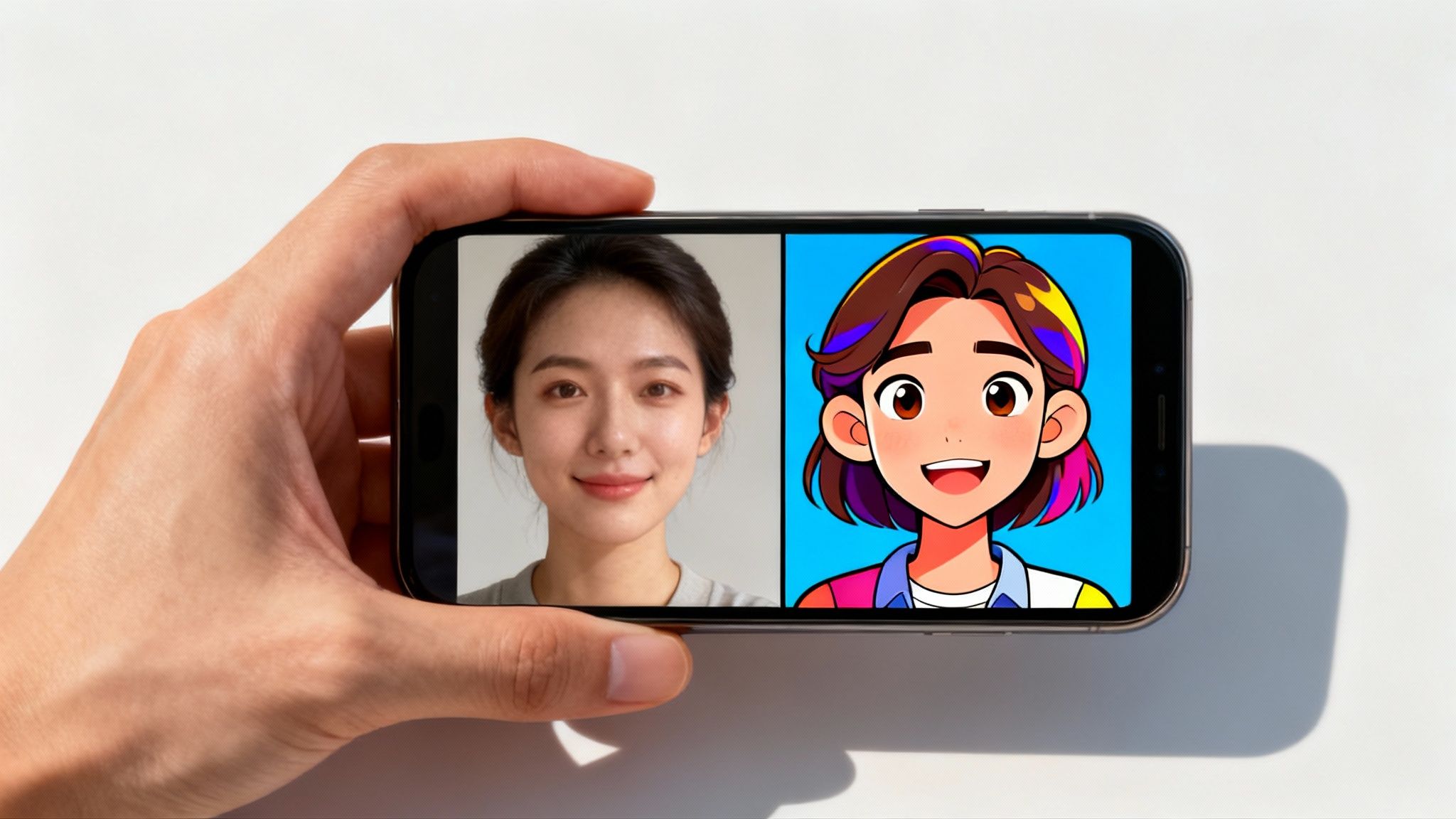
So, you've got a photo you love. Maybe it's a new professional headshot, a picture of your ridiculous pet, or a rare family shot where everyone is actually smiling. Let's give it a cartoon glow-up. This is probably the most fun and accessible way to make a cartoon, perfect for a quirky social media profile or a one-of-a-kind gift.
We’ll break down two paths you can take. First, the lightning-fast automated route, and second, a more hands-on approach for anyone who likes to get their digital hands dirty. Both will get you from a standard photo to a vibrant cartoon without any real headaches.
If you need a cartoon right now, the quickest way is through one-click apps and web tools. These things are built to instantly apply a cartoon style to your image using smart filters and algorithms. You just upload your picture, pick a style, tap a button, and bam—you're a cartoon.
There are tons of these apps out there, and each one brings its own unique flavor. Some will give you a classic comic book vibe, while others lean more toward a modern, animated movie look. The results are instant and fantastic for a quick, fun transformation.
But what if you want to take that initial result and really make it your own? This is where a tool like Zemith can be a game-changer.
This simple workflow gives you the speed of a one-click app but with the creative control of a more powerful editor.
Want a bit more say in the final look without needing to become a digital art pro? You can get a more custom, hand-finished cartoon using the basic filters and brushes in software like Photoshop or the free alternative, GIMP. Don't worry, you don't need any complex illustration skills for this.
The general idea is to simplify the photo's details and then trace over the main lines to give it that defined, hand-drawn feel. It's definitely more involved than a single click, but it's surprisingly straightforward. If that sounds up your alley, our guide on how to make a sketch from a photo breaks down a very similar process you can follow.
Key Takeaway: The best method really just depends on your goal. Need a new profile picture by lunchtime? A one-click app is your best friend. Want to create a personalized gift that feels a little more special? A few simple steps in an editor will get you there.
The demand for animated and cartoon content is exploding. The global animation market is projected to hit $462.32 billion in 2025 and is on a trajectory to soar past $953.31 billion by 2035. This massive growth shows just how valuable learning how to create a cartoon picture has become. Discover more insights on the animation market's growth.
Alright, so you’ve decided to face the blank canvas. Welcome, brave soul! Before you panic, let me be clear: we are not trying to create a masterpiece on day one. The goal here is to demystify the digital drawing process and show you that it's way more approachable than you think.
You don’t need a fancy studio, just some curiosity and a willingness to make a few happy accidents. We'll break down a super simple workflow that real artists use, and you can follow along with free or affordable software like Krita (free!) or Procreate (for iPad).
The core idea is to build your cartoon in layers, which is like drawing on transparent sheets stacked on top of each other. This lets you fix mistakes without erasing your entire drawing. Genius, right?
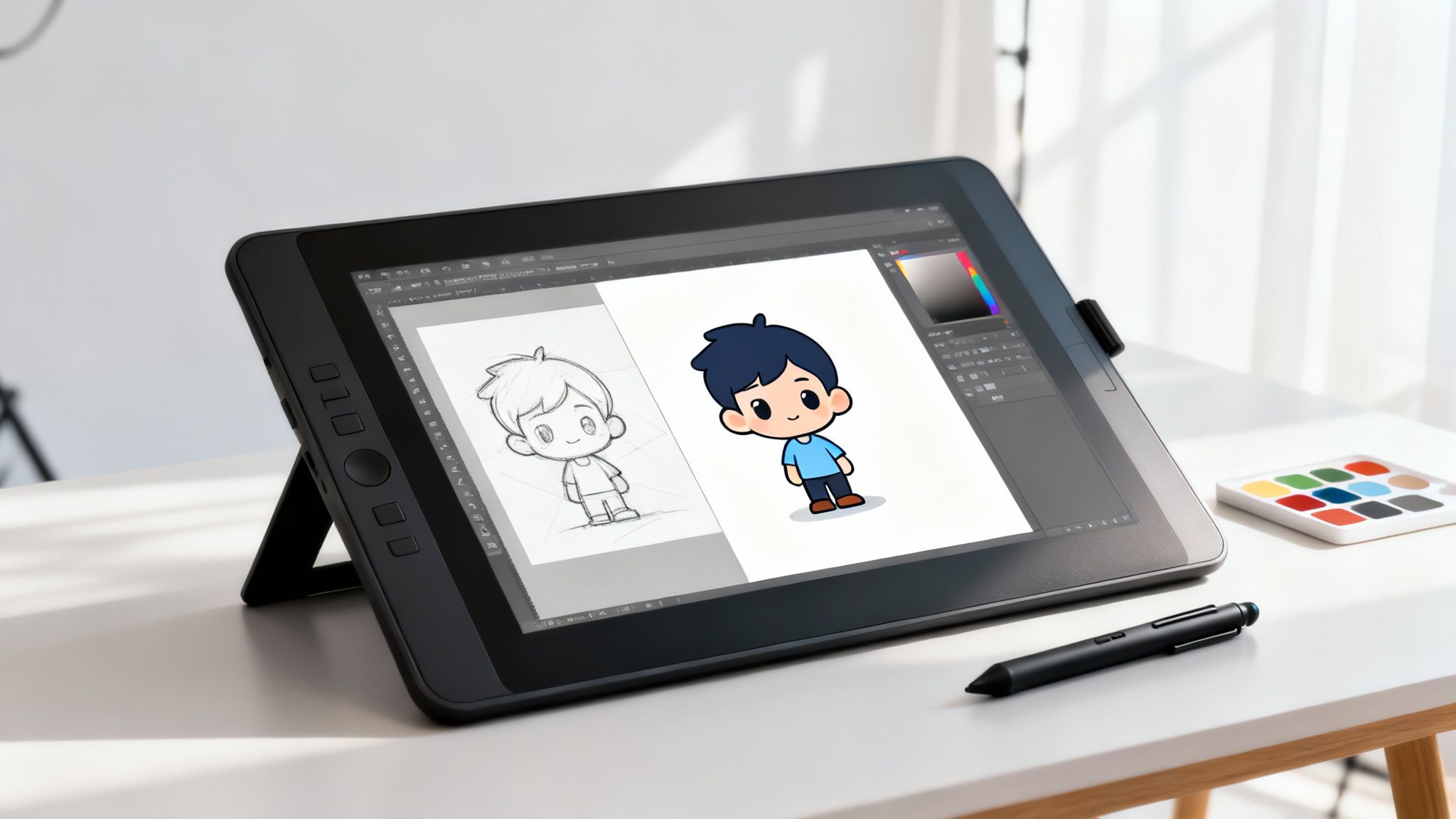
First things first, let's talk about the actual steps. This isn't a rigid formula, but it’s a proven path that will keep you from feeling overwhelmed.
The Ugly Sketch: Start with a new layer and just get your idea down. This is supposed to be messy and chaotic! Use simple shapes—circles for heads, rectangles for bodies—to figure out the pose and composition. Don't worry about clean lines; think of this as your brainstorming phase.
The Clean Lines: Create a new layer on top of your messy sketch. Lower the opacity of the sketch layer so it looks faded. Now, trace over your best lines on the new, clean layer. This is where your cartoon character really starts to take shape. Take your time!
Color Blocking: On another new layer underneath your clean lines, start blocking in your main colors. This is called "flatting." Just fill in the shapes with solid color—no shading yet. Keeping colors on a separate layer is a lifesaver for making changes later.
Simple Shadows: Finally, to make your cartoon pop, create one more layer above the color layer (but still below the lines). Use a slightly darker color to add simple shadows. Don't overthink it; just think about where the light isn't hitting.
Brainstorming Pro Tip: Feeling stuck before you even draw a line? Grab a friend and hop onto a collaborative tool. Zemith's whiteboard feature is perfect for this. You can doodle character ideas together, share reference images, and map out a whole scene before you even open your art software. It's like having a digital napkin to scribble your best ideas on, but way cleaner.
Sometimes, the best inspiration comes from seeing how an AI interprets an image. If you have a photo or a sketch you like, you can use a tool to see what kind of prompt would create it.
Check out our guide on how to go from an image to a prompt to get some really creative style ideas you can try to replicate in your own drawings.
Alright, you've nailed the basics of creating a cartoon picture. That's a huge win! But now comes the really fun part—adding the personality and professional polish that makes your work stand out.
These are the little details that separate a good cartoon from a great one. Think of it as the secret sauce.
Let's dive into a few tricks of the trade that will give your art that extra oomph.
Color is so much more than just decoration; it’s pure emotion. The palette you choose tells your audience exactly how to feel before they even process the details. This is the magic of color psychology.
You don't need a degree in color theory to get this right. Just pause and ask yourself, "What's the vibe I'm going for here?" and let that guide your color choices.
Where you place elements in your frame can make or break an image. An old-school trick that always works is the Rule of Thirds. Just picture a tic-tac-toe grid over your canvas. By placing your main subject where those lines intersect, you create a much more dynamic and visually pleasing scene than if you just stuck it in the middle.
Expressions are just as critical. Seriously, you can tell an entire story with just a character's eyes and eyebrows. A tiny arch in an eyebrow can turn a friendly smile into a mischievous smirk. It’s these small tweaks that help your audience connect with your character. Exploring different artistic styles, like children's book illustration techniques, can also give you a fresh perspective on making your work more engaging.
Zemith Power-Up: Ever see an art style you absolutely love but can't quite figure out how to replicate? Upload an example image to Zemith and use the 'Analyze Image' tool. It breaks down the image into a super-detailed prompt, basically giving you the secret recipe to create that aesthetic yourself. It’s like having an art detective on your team.
You've poured your heart into a creation, and it looks incredible on your screen. Don't let all that work go to waste by saving it in the wrong format! The file type you choose is crucial for how your cartoon looks when you share it with the world.
Here’s a quick and dirty guide:
The animation world has exploded since Pixar's Toy Story blew everyone's minds back in 1995, earning over $370 million worldwide. Today, we're looking at a $394.21 billion industry, with projections to hit a massive $562.13 billion by 2032. This incredible growth is why having tools like Zemith, which put pro-level AI models at your fingertips, is so valuable.
With these tips in your back pocket, you’re ready to take your cartoons to the next level. And if you're feeling adventurous, why not bring your static images to life? Check out our guide on using an AI picture animator.
Alright, so you've explored a few ways to whip up a cartoon. Still got some questions bubbling up? That’s totally normal. Let's tackle some of the most common things people ask when they're just getting started.
Hands down, the easiest entry point is an AI image generator. It's almost like magic. Tools like the ones built into Zemith let you just describe the cartoon you're picturing, and the AI brings it to life in moments. Think of it as having a personal artist ready to go, 24/7.
Your next best bet is a "photo to cartoon" app. Both of these routes give you instant, and often hilarious, results with zero drawing skills needed. They’re perfect for anyone who wants to skip the technical stuff and get right to the creative fun.
Nope, absolutely not! While a fancy tablet is a nice-to-have, you can create some seriously cool art with the tech you probably already own. Plenty of professional artists I know got their start doodling on an iPad or even just their smartphone.
And if you don't have either of those? No big deal. You can always:
It’s so much more about getting your ideas out and practicing than it is about having expensive gear. The best tool is genuinely the one you have in front of you.
Finding your own style is more of a fun scavenger hunt than a final exam. It's all about exploration. A great way to start is by trying to copy the artists you look up to—it's one of the fastest ways to learn what goes into making art you love.
Pay attention to what you enjoy most about their work. Is it the bold, clean lines? The soft, watercolor-like colors? The goofy expressions? Over time, you'll naturally start mixing your favorite elements together, and your own unique style will emerge from that creative soup. Don't stress about consistency at first; just have fun with it.
This is a great question! The short answer is usually yes, but you really need to check the fine print. The commercial rights depend entirely on the specific AI tool you're using.
Many modern platforms, especially the powerful models you can access through hubs like Zemith, grant you full ownership and commercial rights for the images you generate. This means you’re free to use them for your business, on merchandise, or for any other commercial project. Just make it a habit to double-check the terms of service for the specific AI model before you go all-in on selling your masterpiece.
Ready to stop wondering and start creating? Zemith pulls all the tools you need—from AI image generation with top-tier models to a collaborative whiteboard—into one seamless workspace. Start creating your first cartoon in minutes at zemith.com.


Trusted by teams at


The top models, plus image, video and voice tools, in one plan.
Without Zemith
ChatGPT PlusUS$20.00Claude ProUS$20.00Google AI ProUS$19.99SuperGrokUS$30.00Perplexity ProUS$20.00 MidjourneyUS$10.00
 ElevenLabsUS$6.00Le Chat ProUS$14.99
 RunwayUS$15.00Kling StandardUS$8.80
 Gamma PlusUS$12.00
 Otter ProUS$16.99
 QuillBot PremiumUS$19.95
 Photoroom ProUS$12.99
 Quizlet PlusUS$7.99
Total if paying separatelyUS$234.70/mo
"I love the way multiple tools they integrated in one platform. Going in the right direction."
— simplyzubair
"The quality of data and sheer speed of responses is outstanding. I use this app every day."
— barefootmedicine
"The credit system is fair, models are perfect, and the discord is very responsive. Quite awesome."
— MarianZ
"Just works. Simple to use and great for working with documents. Money well spent."
— yerch82
"The organization of features is better than all the other sites — even better than ChatGPT."
— sumore
"It lives up to the all-in-one claim. All the necessary functions with a well-designed, easy UI."
— AlphaLeaf
"The team clearly puts their heart and soul into this platform. Really solid extra functionality."
— SlothMachine
"Updates made almost daily, feedback is incredibly fast. Just look at the changelogs — consistency."
— reu0691
Hand off the research, writing, design and follow-ups. Zemith picks the tools it needs and brings back finished work.
Search the web, run deep research, read files, create images and run code with GPT, Claude, Gemini, Grok and more.
Zemith keeps working in the cloud and pings you when it's done.
Notion, Linear, Canva, Airtable and more. It asks before it creates or changes anything.
Docs, slides, sheets and PDFs, ready to send.
Chain models and tools on a visual canvas, from one prompt to a finished promo video.
Briefings, reports and reminders run on a schedule and are ready when you need them.
Real-time voice that can see your camera or screen.
The best image and video models, in one studio.
Turn PDFs, links and YouTube videos into podcasts, quizzes, flashcards and mind maps.


 Podcast
 Quiz
Quiz Flashcards
 Mind map
 Infographic