


Every top model, with tools built in.
Search the web, run deep research, read files, create images and run code with GPT, Claude, Gemini, Grok and more.
Discover how an AI image extender can expand photos beyond their original borders. Learn practical tips, prompting tricks, and how to fix common fails.
An AI image extender is a tool that uses generative AI to expand a photo beyond its original borders, intelligently filling in the new areas. This tech, also known as outpainting or generative fill, is your new best friend for fixing awkwardly cropped shots or turning a vertical image into a stunning horizontal banner.
Ever snapped the perfect photo, only to realize later that you cropped it a little too tight? Maybe you accidentally cut off your friend's head, or the beautiful landscape is just too narrow for that website header you need. We’ve all been there. It’s a classic creative facepalm moment.
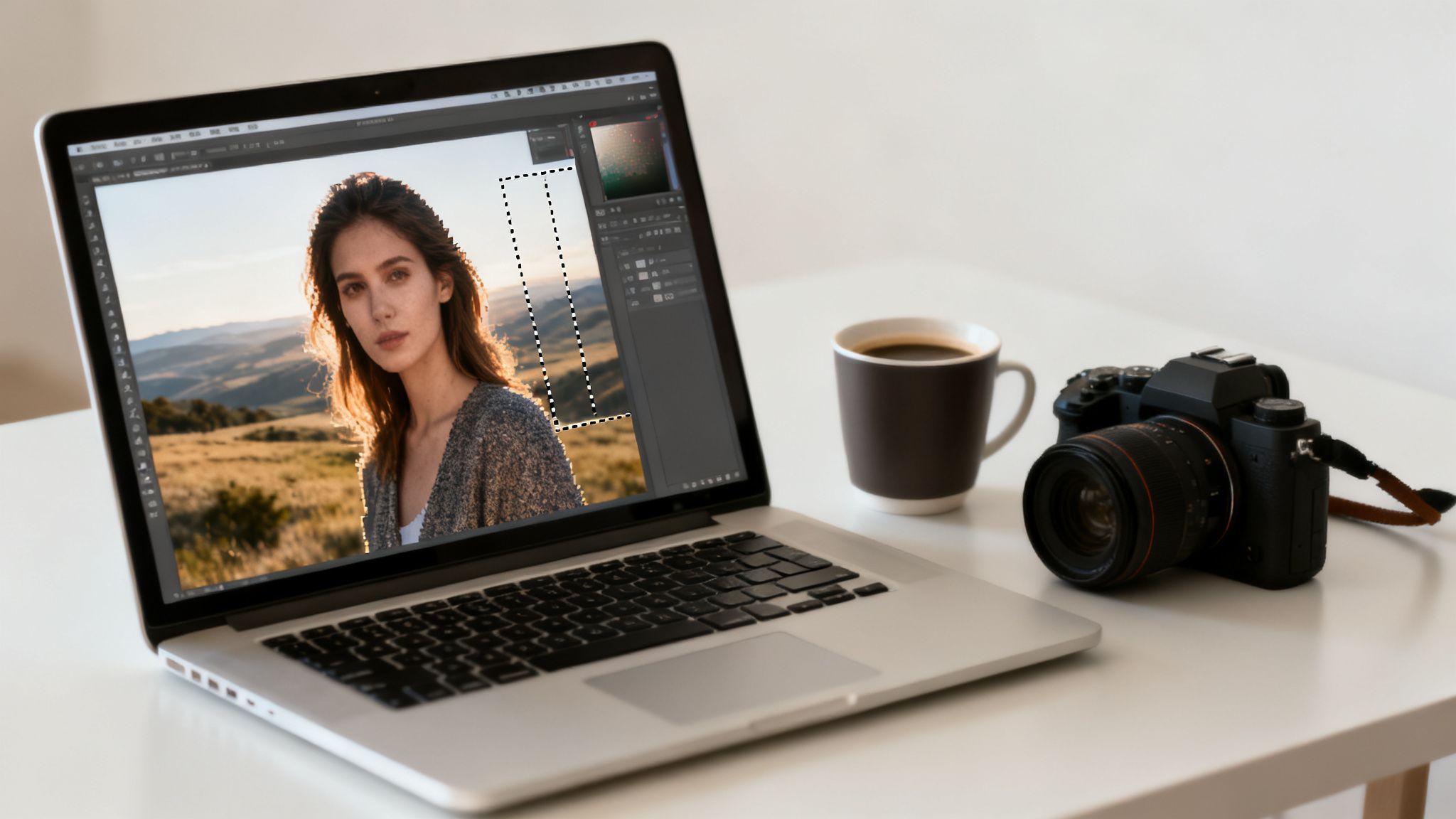
This is precisely where an AI image extender swoops in to save the day. Think of it as a magic undo button for your crop tool, but way, way cooler. Instead of just adding boring blank space, it intelligently "imagines" what exists just outside the frame, painting it into existence.
At its core, an AI image extender uses advanced models like Stability Diffusion 3.5 to analyze the pixels in your existing photo. It studies everything—the lighting, textures, colors, and subject matter—to generate new content that seamlessly blends with the original. It’s not just stretching pixels; it’s creating entirely new, context-aware imagery from scratch.
This technology is a massive time-saver for a huge range of people:
The real magic is in its practicality. Instead of spending hours in complex software, you can now expand an image in seconds. This isn't just a cool party trick; it's a workflow accelerator.
This tech is already making huge waves, as seen in examples of how AI is transforming backgrounds in Photoshop for fashion brands, letting them create complex scenes with total ease.
The demand is growing fast, too. The broader AI image enhancer market, which includes these extenders, hit USD 2.6 billion in 2024 and is projected to soar to USD 50.7 billion by 2034. A huge driver for this is e-commerce, where better visuals can dramatically boost conversion rates.
To get a better handle on how different pros are putting this to work, here’s a quick breakdown:
A quick look at how various professionals use AI image extension tools to solve everyday problems and get more done.
As you can see, the applications are incredibly practical and solve real, everyday frustrations for people who work with images.
The best part is that tools like Zemith.com bundle this power into a single, cohesive workspace. You can stop juggling different apps for image generation, analysis, and extension. To get a deeper dive into the tech itself, check out our guide on artificial intelligence image analysis. By having everything in one place, you can focus on what matters most—creating bigger, better images instantly.
Getting a flawless result from an AI image extender isn't about crossing your fingers and hoping for the best. It’s a lot more like cooking—you need the right ingredients in the right amounts. If you just toss things in randomly, you'll end up with a digital mess. For outpainting, those three magic ingredients are your Model, your Mask, and your Prompt.
Think of them as a creative team. The Model is your artist, the Mask is the canvas boundary you set, and the Prompt is your specific art direction. When all three work in harmony, you can create stunning, seamless expansions every single time.
First thing's first: the AI model. This isn't just some technical setting you can ignore; it's like picking a specific artist for a commission. Every model has its own style, its own quirks, and its own strengths.
A solid platform like Zemith makes this part a breeze by letting you swap between models on the fly. This is a huge time-saver. You can run the same image and prompt through a few different models to see which one really understands your vision, all without having to bounce between different websites.
Next up is the mask. This is just the area you draw to tell the AI, "Hey, I need you to paint right here." It sounds straightforward, but a sloppy, careless mask is the number one reason people get those weird, jarring seams in their final image.
The trick is to create a clean, defined space for the AI to fill. You'll want to overlap your mask slightly with the edge of the original picture—I've found about 5-10% is a good rule of thumb. This gives the AI just enough pixel data from your image to analyze the style, colors, and textures for a much smoother blend. It’s like giving your artist a little reference swatch so they can match their new work to the original perfectly.
Pro Tip: Try to avoid making thin, jagged, or oddly-shaped masks. The AI almost always has an easier time handling simple, broad rectangular extensions. If you need to fill out a complex shape, it's better to do it in a few separate, simpler steps.
And that brings us to the most important ingredient of all: the prompt. Throwing a vague prompt like "add more background" at the AI is basically an invitation for chaos. Sure, you might get a beautiful forest... or you might get a parking lot full of rubber chickens. The AI has no idea what you're picturing unless you tell it!
This is where the underlying tech, like Stable Diffusion's img2img feature, really shines, but it's completely dependent on getting good instructions.
A strong prompt is descriptive and specific. Give the AI details that guide it toward a result that makes sense:
Honestly, learning to write good prompts is a skill in itself, and it's what separates decent results from amazing ones. If you really want to level up, you need to understand the fundamentals. We put together a whole guide on what prompt engineering is that breaks it all down. Once you get these three ingredients right, you’re in complete creative control.
Alright, enough with the theory—let's roll up our sleeves and actually make something. I'm going to walk you through extending an image from start to finish using Zemith's toolkit. We'll tackle a classic, real-world task: turning a vertical portrait into a horizontal banner that's perfect for a website or blog header.
I’ll show you how to upload your image, find the integrated AI image extender, and pick the right model for the job. We're going to use Black Forest Labs Flux 1.1 Pro Ultra for this example because it’s honestly fantastic at generating realistic, believable details. You'll see exactly how to draw your mask and write a prompt that gets you the results you want.
We'll even use Zemith's built-in Smart Notepad to quickly jot down a few prompt ideas before hitting "generate." Ready to see how easy this is? Let's dive in.
First things first, grab a simple portrait photo you want to play with. This could be a professional headshot, a product shot, or even a picture of your ridiculously cute dog. Go ahead and upload it directly into your Zemith project space.
Once it's loaded, find the AI image extender tool. You'll see options to expand the canvas. For our website banner, we're going to drag the side handles to create a wide, horizontal space on both sides of our original portrait. This new, blank area is where the AI is going to paint.
Having this all in one place is a massive time-saver. You're not stuck in that frustrating loop of downloading images, uploading them to another site, then downloading them all over again. Everything happens right here.
To really nail your first extension, you just need to remember three key components: picking your model, drawing your mask, and writing your prompt. It’s a simple workflow that puts you in the driver's seat.
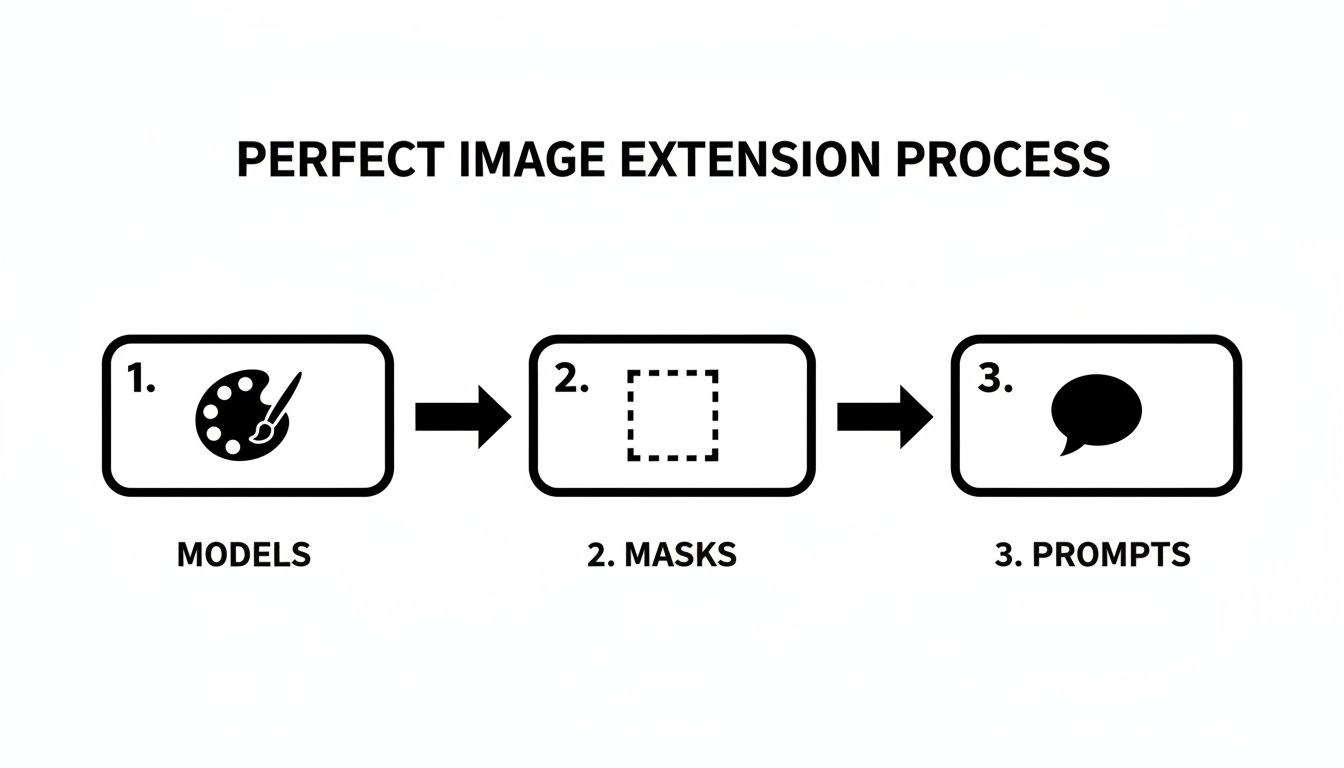
Think of it this way: each element builds on the last, turning your creative idea into a finished, fully extended image.
With our canvas expanded, Zemith automatically creates the "mask" in the new empty space, so that's handled. Now for the fun part—the prompt. Let's imagine our portrait is of someone wearing a cozy-looking sweater. A lazy prompt just won't cut it.
Instead of typing "add a background," let's give the AI something to really work with. We'll try this:
"A cozy, warm, and inviting coffee shop, soft morning light streaming through a window, blurred background with bookshelves and green plants, photorealistic, 8k"
See the difference? We've given the AI specific details: the setting (coffee shop), the lighting (soft morning light), and background elements (bookshelves, plants). Now, let's generate a few versions and see what we get back.
After you hit generate, Zemith will spit out a few different options based on your prompt. Sometimes you get lucky and one is perfect right out of the gate, but more often than not, you'll want to tweak it. Let's say one version looks great, but the lighting feels a bit flat.
This is where iteration comes in. We can adjust the prompt slightly, maybe adding "golden hour glow" or "subtle steam rising from a coffee mug." For a deeper look at how your original image guides the AI, you might want to check out our guide on the image-to-prompt process.
Since the generative AI boom in 2022, tools like this have become a core part of the creative process. This isn't just a niche thing; the AI market is projected to skyrocket from USD 390.91 billion in 2025 to over USD 539.45 billion in 2026. What’s more, data shows that 25% of photography workflows now use AI extensions, which can slash manual labor by up to 80%. That’s a huge efficiency boost for anyone creating visuals.
By following these steps, you've just turned a simple portrait into a custom, professional-looking banner in a matter of minutes. No clunky software, no tedious manual editing. That’s the real power you get when all your creative tools live in one smart workspace.
Alright, we've covered the "how," but let's get into the "what"—the part where the real magic happens. Knowing how to use an AI image extender is great, but knowing what to tell it is where you'll get those jaw-dropping results. This section is your cheat sheet for solving common creative headaches. Think of it as a playbook you can pull from whenever you're stuck, whether you're fixing a bad crop or turning a plain product shot into a lifestyle masterpiece.
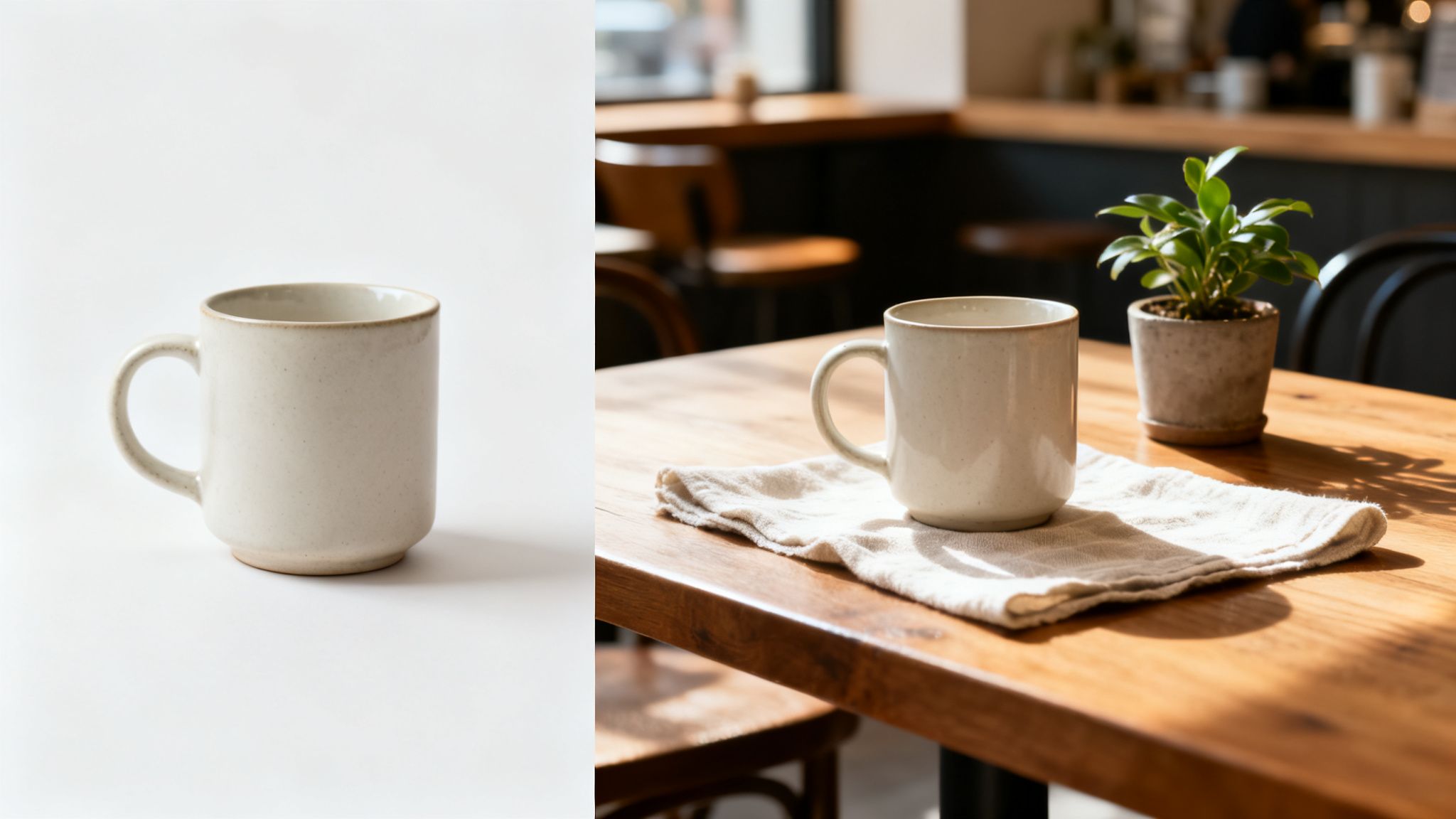
Marketers, you know the drill. You’ve got a perfectly good product photo, but it’s sitting on a boring white background. To make it pop in an ad campaign, you need to place it in a real-world context. This used to mean booking a location, hiring a photographer, and spending a day on a full-blown photoshoot. Now? It takes less than a minute.
Take this simple ceramic mug. Pop it into Zemith, stretch out the canvas, and feed the AI a prompt that paints a picture.
Prompt Example: "A rustic wooden kitchen table in the morning, soft sunlight streaming from a window on the left, a half-eaten croissant on a plate nearby, steam gently rising from the mug, blurred background of a modern kitchen, photorealistic."
See what that prompt does? It doesn't just ask for a "kitchen." It builds an entire scene by defining the lighting, location, time of day, and even other objects. This immediately injects a story and an emotional connection. The results speak for themselves; in advertising, this kind of AI-assisted imagery has been shown to boost engagement by as much as 40%. You can dive deeper into this and find more AI image prompt examples right here on our blog.
Ever found the perfect vertical photo for a horizontal slide deck? You're left with those ugly, unprofessional empty bars on either side. An AI image extender is the perfect tool for this.
Let's say you have a great headshot of a speaker. Just expand the canvas to the left and right and use a prompt to create a background that fits the mood without being distracting.
This small tweak makes your presentation look incredibly polished and saves you the headache of endlessly scrolling through stock photo sites for something that might work.
Key Takeaway: You're not just adding pixels—you're adding a narrative. Your prompt should always guide the AI toward building a story around your original subject.
Here's a clever trick for designers. Say you have a small sample of a cool texture—a slice of wood grain, a swatch of fabric, or a piece of marbled paper. You can use an AI image extender to spin that tiny sample into a huge, seamless pattern.
It’s surprisingly simple. Upload your texture, expand the canvas out in every direction, and then give the AI a very direct, no-nonsense prompt.
Prompt Example: "Continue the seamless wooden texture, high-detail, no visible edges or seams."
Just like that, you can generate massive, high-resolution textures that are perfect for 3D models, website backgrounds, or unique print designs. It’s a game-changer for creating custom assets without being limited by the physical size of your source material. This technology is becoming incredibly popular, especially in e-commerce, which now accounts for 60% of the demand for these tools.
Let's be real for a second. Sometimes, you ask the AI to extend a beautiful forest scene, and it decides to add... a random floating toaster. It happens to the best of us. That moment when the AI goes completely off the rails is both hilarious and frustrating.
This section is your emergency guide for those head-scratching moments. It’s for when your AI image extender gives you something bizarre instead of brilliant. Think of these tips as your troubleshooting cheat sheet to turn those creative fails into flawless victories.
So, you got the floating toaster. Or maybe your serene beach now has a rogue fire hydrant. This is the most common and funniest fail, and it's usually a prompt problem. The AI sometimes gets confused and pulls in concepts it thinks are related, but are wildly out of context.
The fix is learning the art of the negative prompt. This is where you explicitly tell the AI what not to draw. Most good tools, including Zemith, have a dedicated field for this.
This simple step gives you way more control and helps keep the AI focused on your actual vision, not its own strange digital dreams.
Another classic issue is the blurry or obvious seam where your original photo meets the new AI-generated part. It looks like you just slapped two different images together. This is almost always a sign that your mask needs a little TLC.
The key to a seamless blend is giving the AI enough context. A well-placed mask acts as a bridge between the original pixels and the new ones, ensuring a smooth transition.
Your mask should slightly overlap with the edge of your original image—think about 5% to 10%. This small overlap gives the AI crucial data on colors, textures, and lighting, allowing it to create a much more natural-looking connection. Avoid creating thin, jagged masks; simple, clean rectangles are your best friend here. For more insights on how AI interprets images, you can check out our guide on how to generate images with ChatGPT.
Did you extend a bright, sunny day photo only for the AI to add a dark, stormy landscape? This happens when your prompt isn't specific enough about the atmosphere. The AI needs clear instructions on light and color to match the mood.
Instead of a generic prompt, add descriptive lighting cues:
By specifying the lighting and color palette, you guide the AI to generate an extension that feels like it was part of the original shot all along.
When you're in the thick of it, it helps to have a quick reference. Here's a table to help you diagnose and solve the most frequent issues you'll encounter with AI image extenders.
Think of this table as your first line of defense. Most of the time, one of these quick fixes will get you back on track and turn that AI fail into a win.
Got a few lingering questions? Perfect. I’ve put together some quick, no-nonsense answers to the things people most often ask about extending images with AI.
For the most part, yes. These tools are fantastic on images with somewhat consistent patterns or textures. Think landscapes with big skies, portraits with simple backgrounds, or clean product shots. They can get a little… creative… with highly complex or abstract scenes, so be prepared for some weird results there.
The better your starting image, the better the final result. While you can use it on low-res photos, the new AI-generated bits might look jarringly sharp compared to the blurry original.
My Go-To Trick: If I'm stuck with a small or fuzzy image, I always run it through an upscaler first. The AI upscaler built right into Zemith is a lifesaver for this, letting you sharpen and then extend your picture all in one place.
You’ll see these terms used interchangeably all the time, and honestly, it’s not a big deal. But if you want to know the nitty-gritty, there's a subtle distinction.
So, to put it all together: an AI image extender uses an outpainting model to let you uncrop your photo. Simple as that.
Ah, the million-dollar question. This is a hot-button issue, and the legal side of AI is still catching up to the tech. In general, if you own the original photo, you're clear to modify it. The new AI-generated additions, however, live in a bit of a legal gray zone, and ownership often comes down to the terms of service of the tool you're using.
This is why, for any commercial project, it's absolutely crucial to use a platform with clear commercial usage rights. A professional tool like Zemith is built for this, giving you peace of mind so you can focus on creating, not worrying about legal trouble down the road.
My rule of thumb is this: only extend images you have the rights to use, and always read the fine print on the service's terms before you use the output for business.
Ready to stop wrestling with your photos and start making them shine? Zemith packs a powerful AI image extender and a whole suite of creative tools into one smooth workflow. Start creating for free at Zemith.com.


Trusted by teams at


The top models, plus image, video and voice tools, in one plan.
Without Zemith
ChatGPT PlusUS$20.00Claude ProUS$20.00Google AI ProUS$19.99SuperGrokUS$30.00Perplexity ProUS$20.00 MidjourneyUS$10.00
 ElevenLabsUS$6.00Le Chat ProUS$14.99
 RunwayUS$15.00Kling StandardUS$8.80
 Gamma PlusUS$12.00
 Otter ProUS$16.99
 QuillBot PremiumUS$19.95
 Photoroom ProUS$12.99
 Quizlet PlusUS$7.99
Total if paying separatelyUS$234.70/mo
"I love the way multiple tools they integrated in one platform. Going in the right direction."
— simplyzubair
"The quality of data and sheer speed of responses is outstanding. I use this app every day."
— barefootmedicine
"The credit system is fair, models are perfect, and the discord is very responsive. Quite awesome."
— MarianZ
"Just works. Simple to use and great for working with documents. Money well spent."
— yerch82
"The organization of features is better than all the other sites — even better than ChatGPT."
— sumore
"It lives up to the all-in-one claim. All the necessary functions with a well-designed, easy UI."
— AlphaLeaf
"The team clearly puts their heart and soul into this platform. Really solid extra functionality."
— SlothMachine
"Updates made almost daily, feedback is incredibly fast. Just look at the changelogs — consistency."
— reu0691
Hand off the research, writing, design and follow-ups. Zemith picks the tools it needs and brings back finished work.
Search the web, run deep research, read files, create images and run code with GPT, Claude, Gemini, Grok and more.
Zemith keeps working in the cloud and pings you when it's done.
Notion, Linear, Canva, Airtable and more. It asks before it creates or changes anything.
Docs, slides, sheets and PDFs, ready to send.
Chain models and tools on a visual canvas, from one prompt to a finished promo video.
Briefings, reports and reminders run on a schedule and are ready when you need them.
Real-time voice that can see your camera or screen.
The best image and video models, in one studio.
Turn PDFs, links and YouTube videos into podcasts, quizzes, flashcards and mind maps.


 Podcast
 Quiz
Quiz Flashcards
 Mind map
 Infographic